A draft passes through teacher review
- 01
Read
Compare the AI summary with the lesson.
- 02
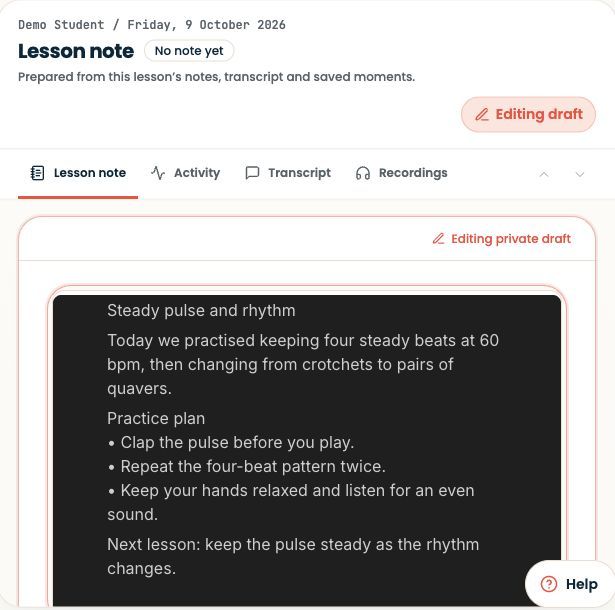
Edit
Replace vague advice with the agreed task.
- 03
Preview
Read it from the learner’s perspective.
- 04
Publish
Share the version you approve.
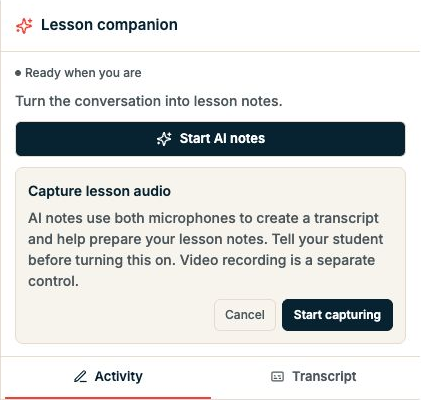
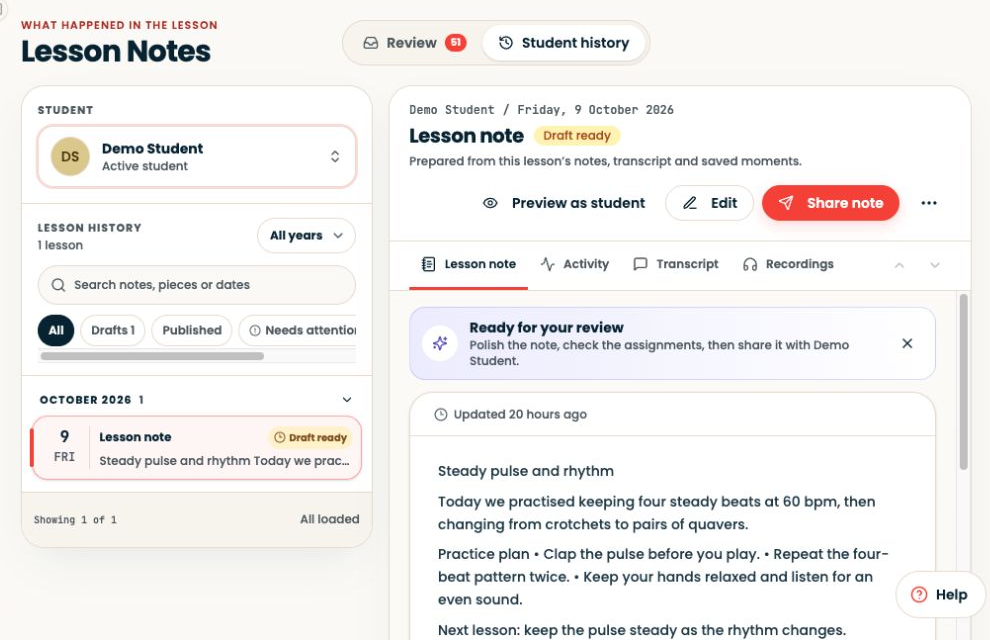
Open Lesson Notes, select the learner and lesson, and check the draft against the teaching session.
Step-by-step explanation
Review from Lesson Notes
- Open Lesson Notes, select the learner and lesson, and check the draft against the teaching session.
- Edit the musical details and agreed next steps, then use Preview as student before publishing.
- Be specific about the resource, bars and task.
- Review assignment suggestions separately; publishing guidance and assigning work are different actions.
Written walkthrough
Use the steps above in the correct account and teaching relationship. Check that the intended lesson, student or resource is selected before making changes. If an action is unavailable, check your plan and the current lesson or assignment status. Confirm the result on screen before leaving the page.