Keep SYNKii open in another tab. Follow the steps for your task; optional actions are labelled so you know what can wait.
Follow the numbered steps and highlighted controls. Screenshots show the actual SYNKii interface; example dates and settings may differ from yours.
1
Find Lesson Notes in the menu
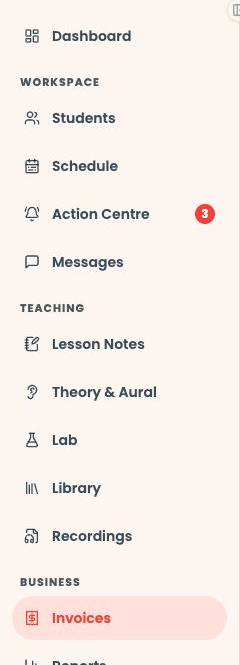
Start on your teacher dashboard. Look down the navigation menu for the Teaching heading, then click Lesson Notes. If the menu is folded away, open it first to see the names.
Open full-size screenshot ↗Platform screenshot: Find Lesson Notes under Teaching in the dashboard menu. The yellow outline marks the destination; this capture was taken from Invoices.
Check: The Lesson Notes page opens.
2
Choose the lesson
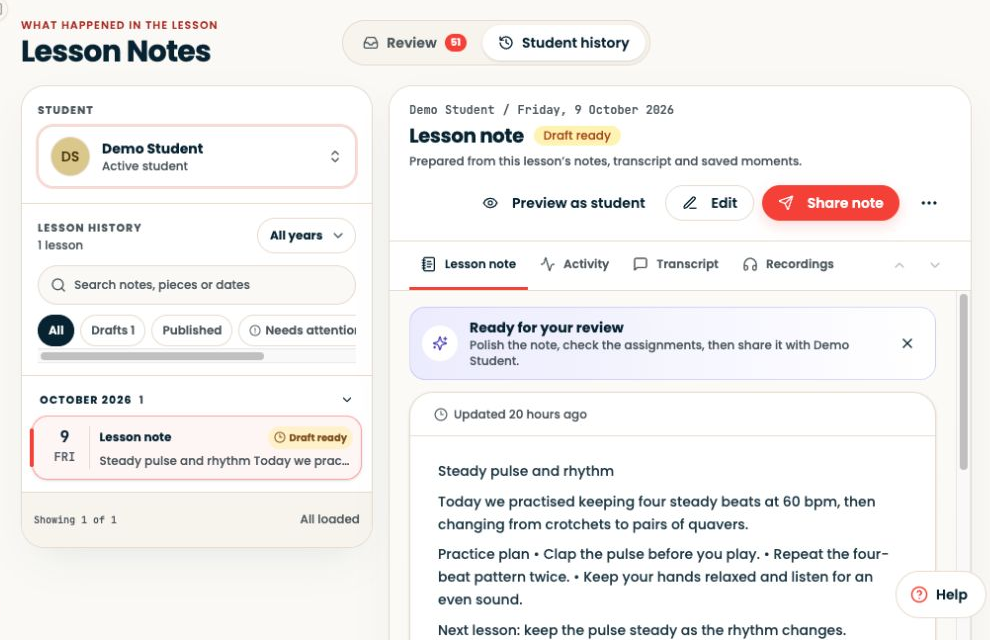
Select the learner and then the lesson you want to write about. Check the date before opening or editing a note.
Open full-size screenshot ↗Platform screenshot: The selected demo note shows its draft status and review actions.
Check: The selected lesson and its note status are visible.
3
Check and correct the note
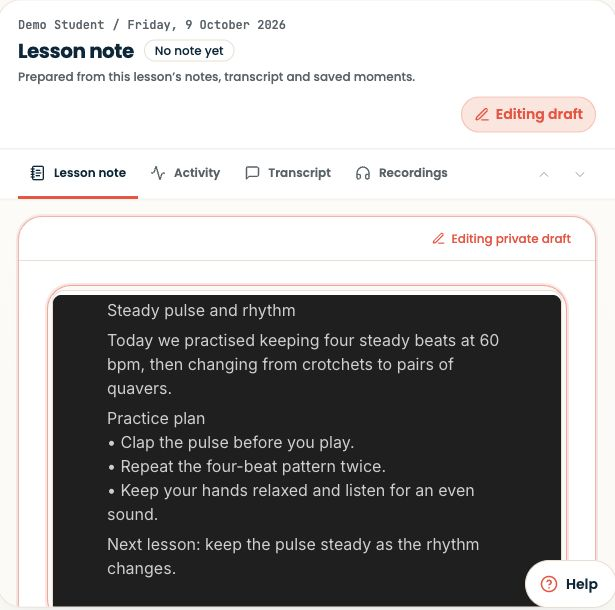
Check the learner, date, piece, bar numbers and practice task. Remove inaccurate or private content. Edit only if needed, then save any changes before previewing.
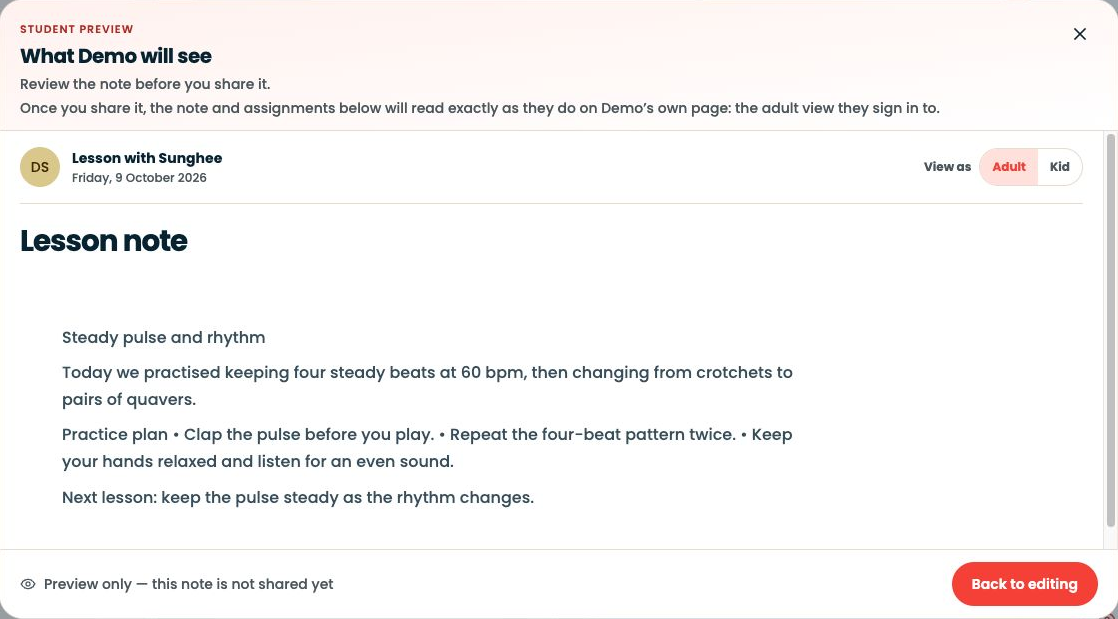
Check: You have checked the learner-facing version.
5
Share and check the status
Click Share note, or Share changes if this is an updated shared note. Wait for completion and look for Shared.
Open full-size screenshot ↗Platform screenshot: Share note is beside Edit at the top of the selected note. This demo draft has not been shared.
Check: Shared confirms the sharing step completed. A draft is not enough.
Can’t find the same screen? Check that you are in the right account and have selected the right learner or lesson. On a small screen, open the navigation menu to see the page names. Read any access or availability message before continuing.
What does the note status mean?
Status
What to do
Draft
Review before sharing.
Unshared changes
Review the edits, then use the sharing action when ready.
Shared
The sharing step has completed.
If sharing does not finish
Read the message beside the note. Resolve unsaved changes or pending processing, then reopen the lesson to check its status before retrying.
Assignment suggestions need a separate review and assignment action; sharing a note does not assign an exercise.
A page of corrections can make it difficult to decide what to do first. Give the learner one clear priority and keep the rest as context for future teaching.
Lesson Notes & AI1 min ↗
Illustrated explanation
A manual task should be easy to start
01
Title
Keep the pulse through bars 1–2.
02
Instructions
Tap and count once; play twice slowly.
03
Listening cue
An uninterrupted beat when the melody turns.
04
Final check
Correct learner, clear task, available score.
Illustrated assignment content, not invented composer fields.
Open Students → select the learner → Assignments to manage the work you set.
Lesson Notes & AI1 min ↗
A little choice. A clearer experience.
Your privacy, your choice.
We use essential storage to keep Synkii working. With your permission, we also use PostHog to understand page use and measure which campaigns lead to signups. No session recordings.