Slide walkthrough · 1 minute read

Invite an adult learner and a guardian: two short walkthroughs

Explore Tutorials
Explore step by step5 slides · At your own pace
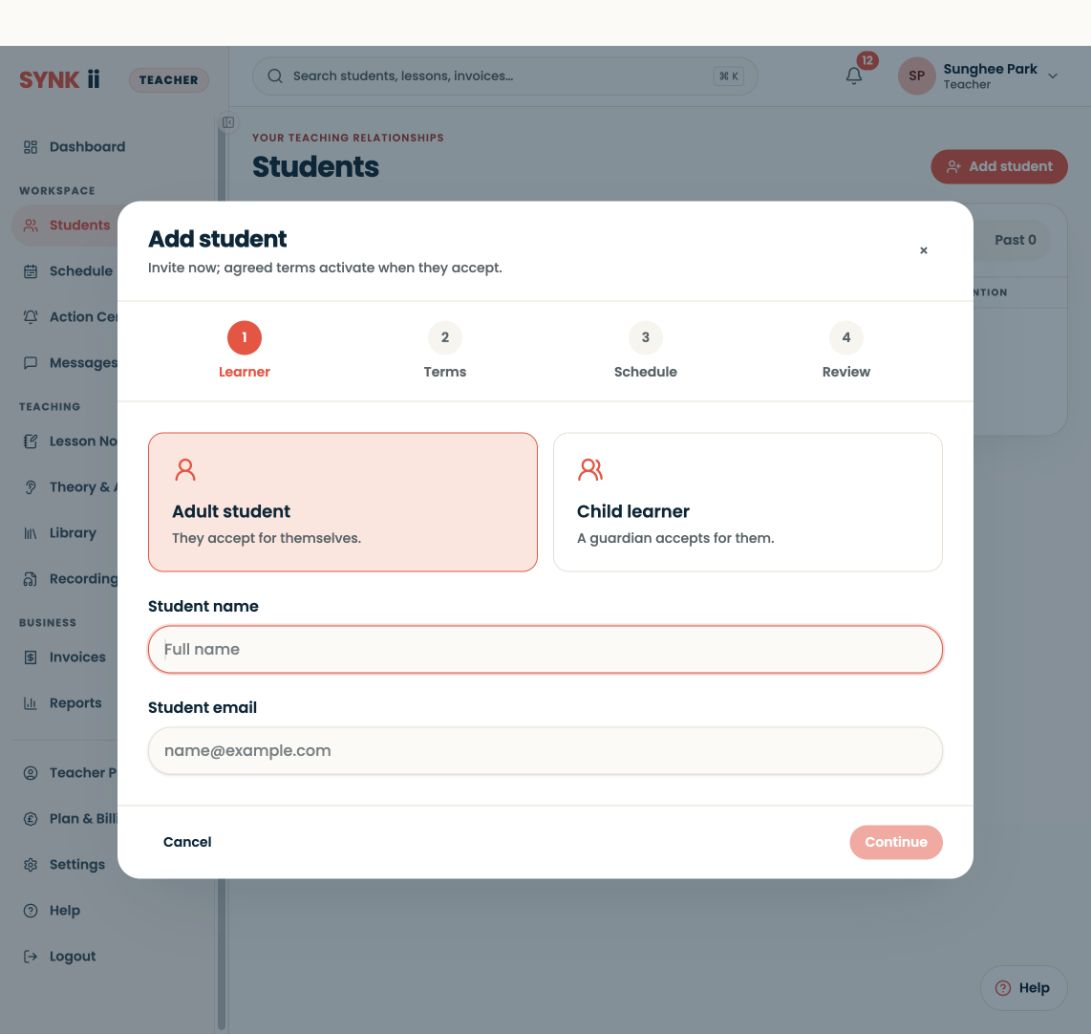
Actual SYNKii interface: Choose the learner. Open Students, then Add student. Choose Adult student when the learner accepts for themselves.
STEP 01

Choose the learner

Open Students, then Add student. Choose Adult student when the learner accepts for themselves.

Enlarge screenshot
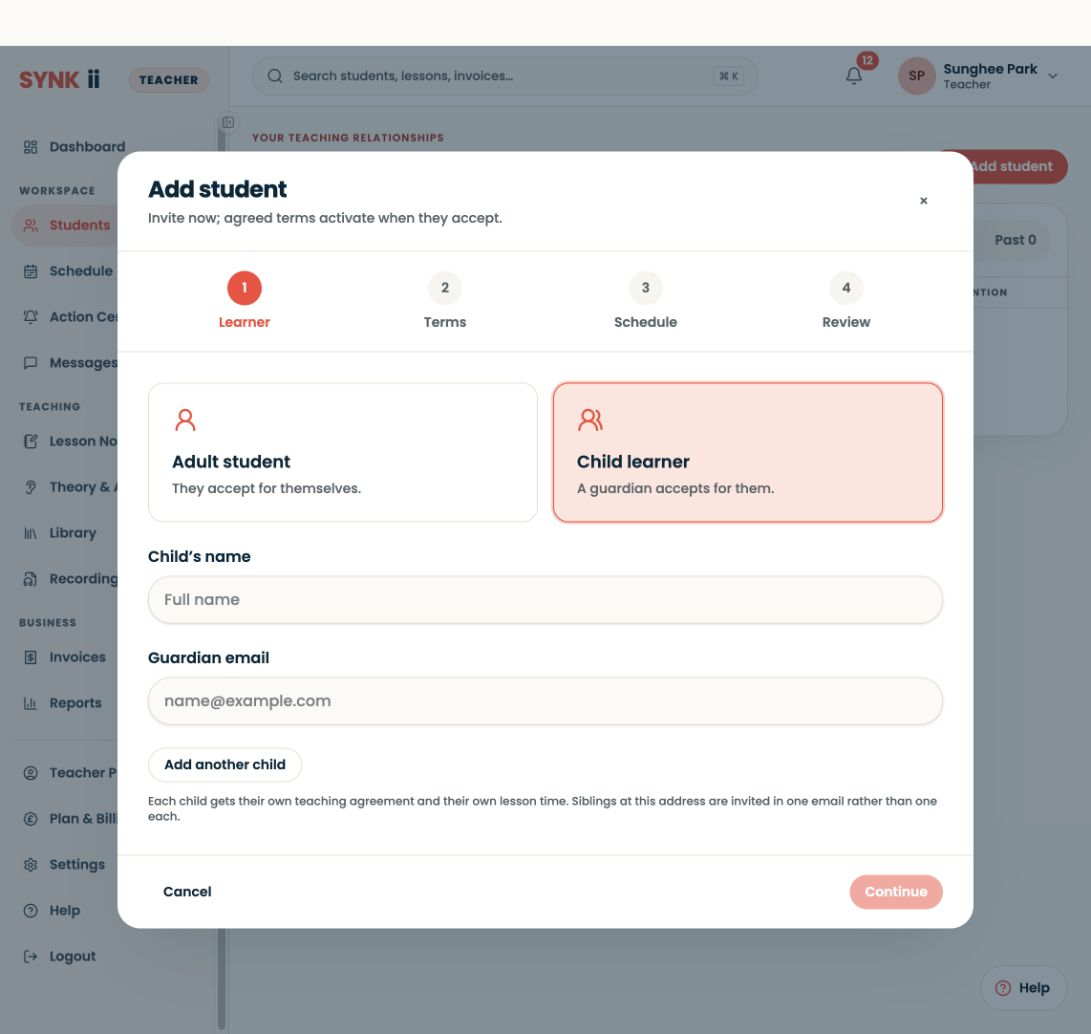
Actual SYNKii interface: For a child, invite the guardian. Choose Child learner. Enter the child’s name and the guardian’s email in their separate fields.
STEP 02

For a child, invite the guardian

Choose Child learner. Enter the child’s name and the guardian’s email in their separate fields.

Enlarge screenshot
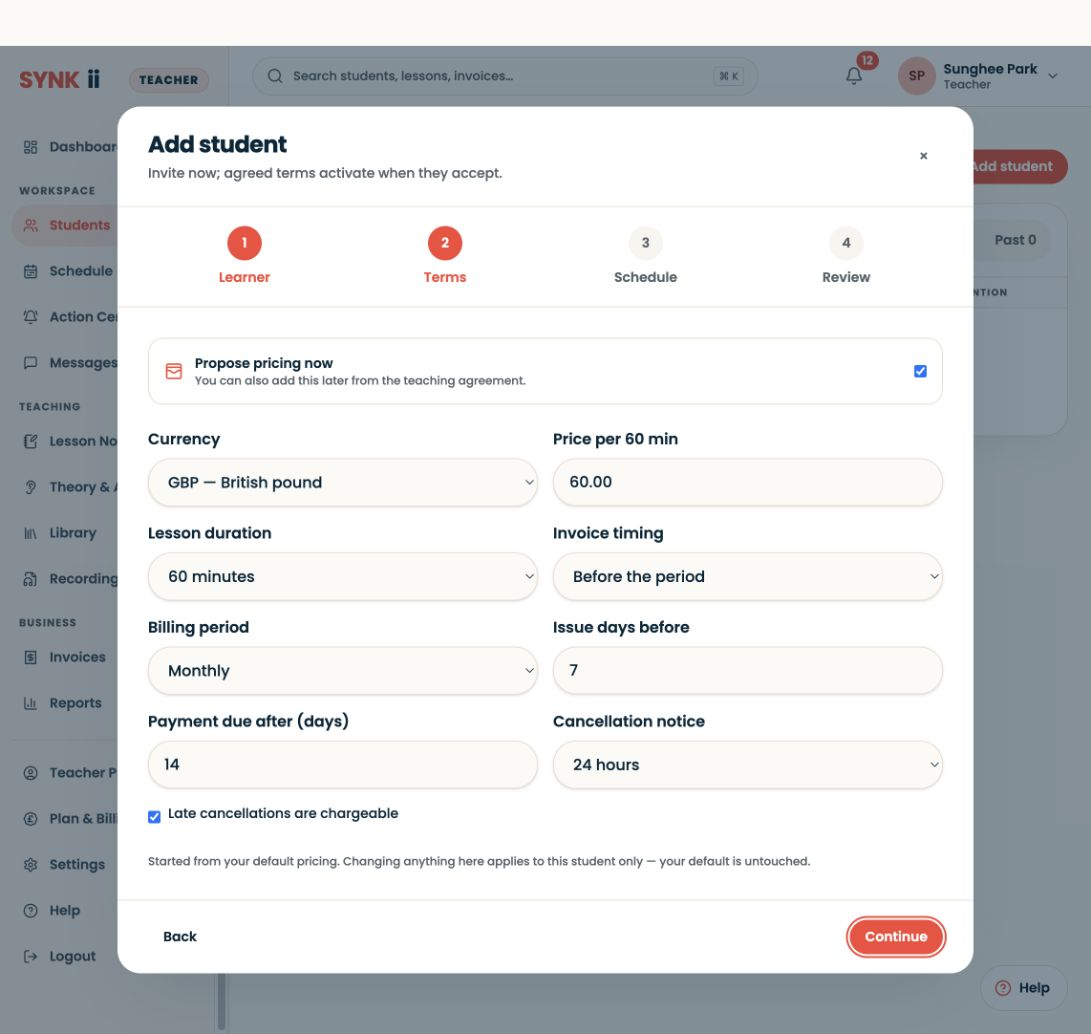
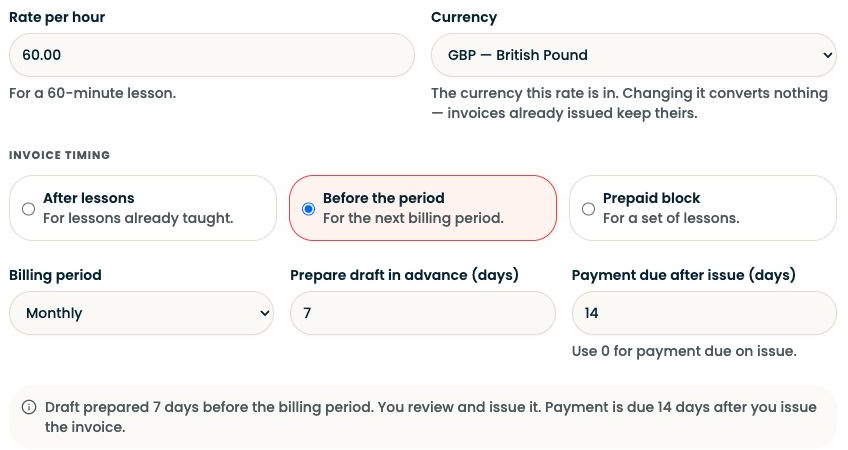
Actual SYNKii interface: Review your proposed terms. Check price, lesson length, billing and cancellation terms. These are lesson fees, separate from the SYNKii subscription.
STEP 03

Review your proposed terms

Check price, lesson length, billing and cancellation terms. These are lesson fees, separate from the SYNKii subscription.

Enlarge screenshot
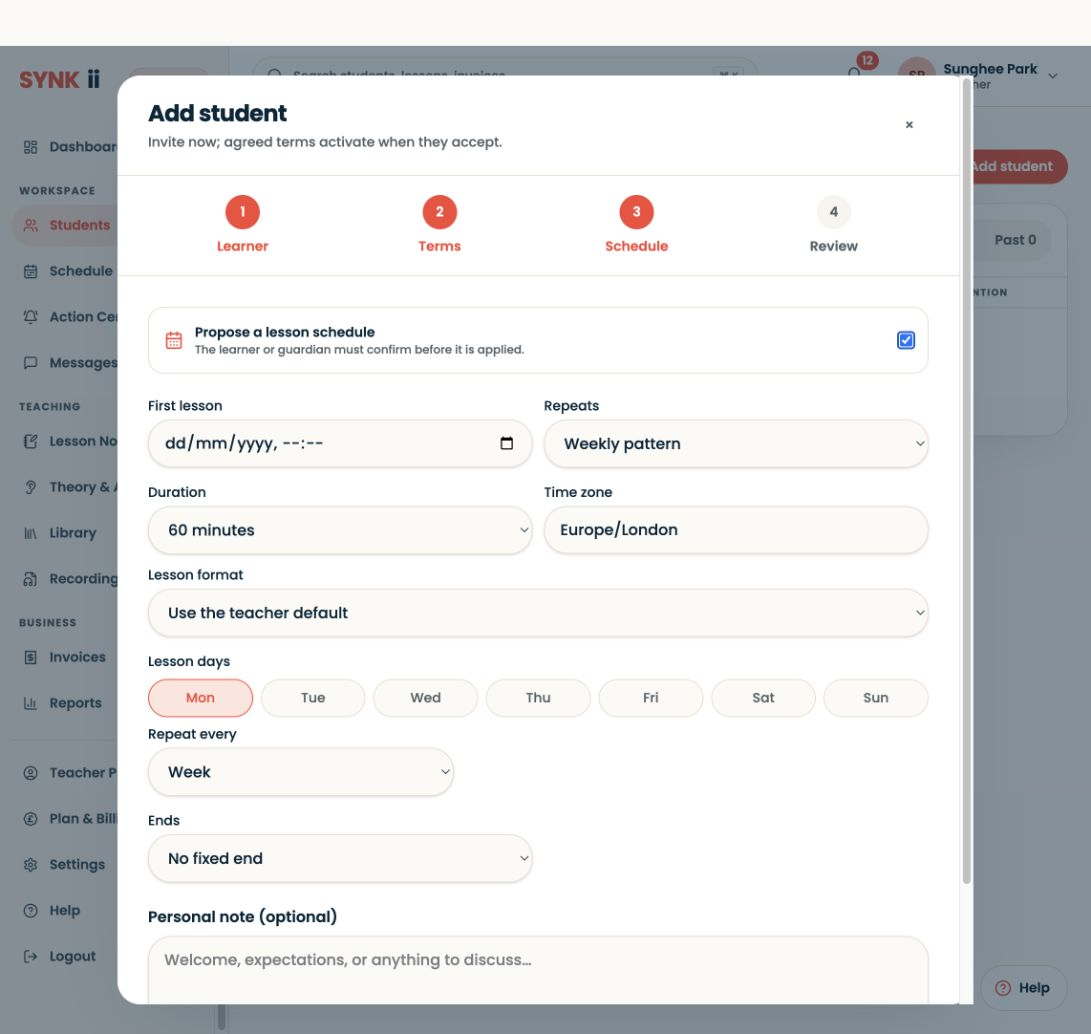
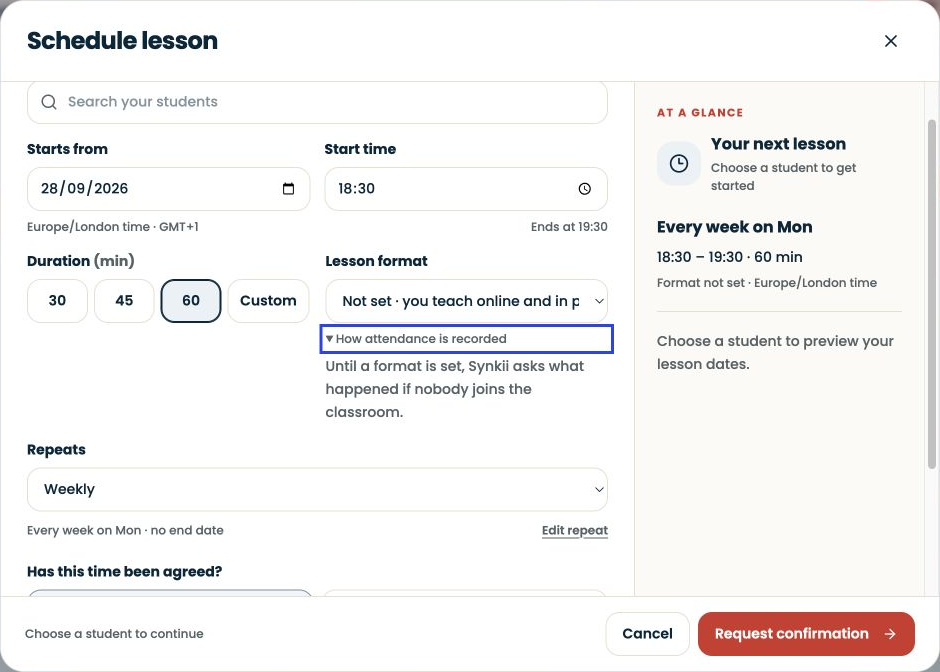
Actual SYNKii interface: Propose a lesson time. Optionally add a first lesson and repeat pattern. The learner or guardian confirms the proposal before it is applied.
STEP 04

Propose a lesson time

Optionally add a first lesson and repeat pattern. The learner or guardian confirms the proposal before it is applied.

Enlarge screenshot
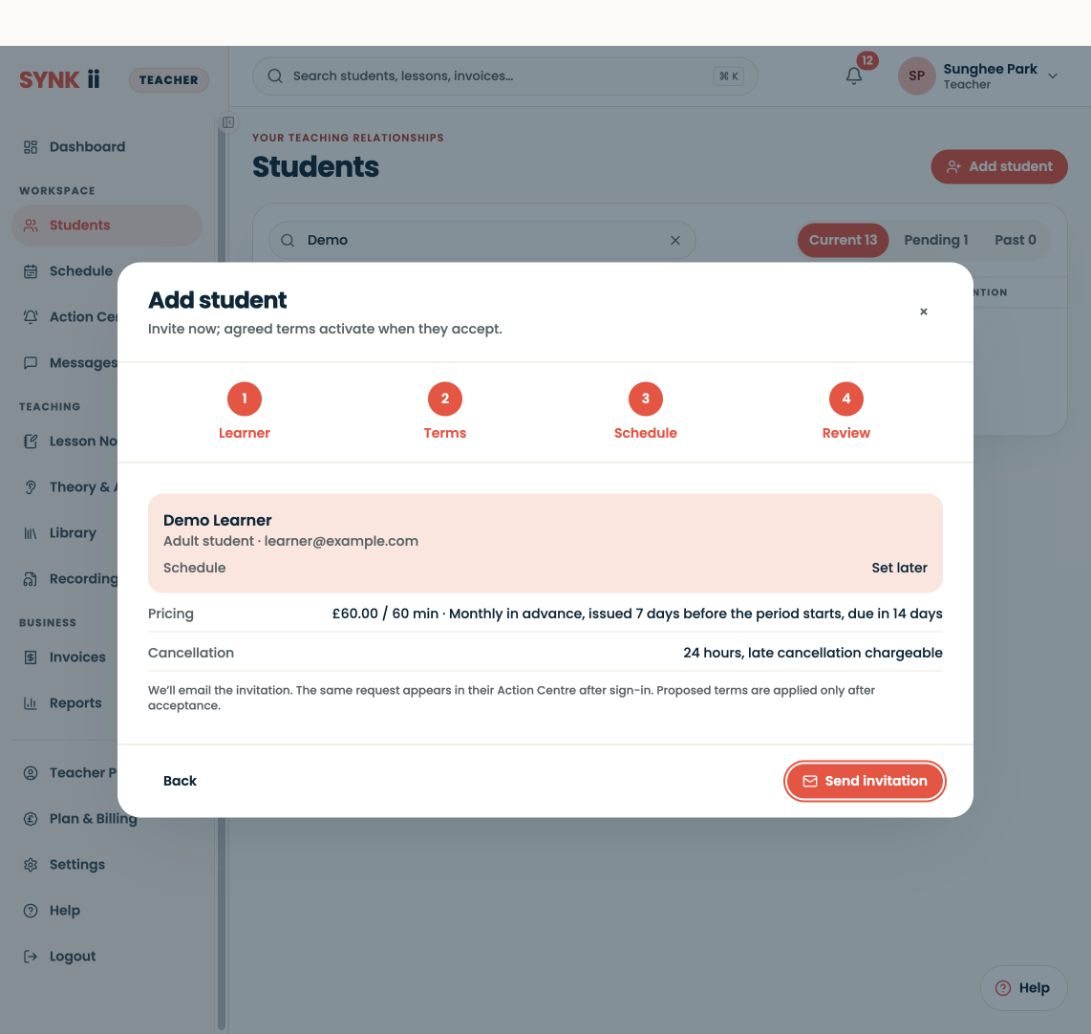
Actual SYNKii interface: Check before sending. Review the recipient and arrangement. This fictional example stops here: no invitation was sent. Acceptance happens after sending.
STEP 05

Check before sending

Review the recipient and arrangement. This fictional example stops here: no invitation was sent. Acceptance happens after sending.

Enlarge screenshot

Adult learners and guardians · Actual platform captures · September 2026

Use Dashboard → Add student or open Students.

Written walkthrough

Use Dashboard → Add student or open Students. Choose the adult learner or child route, check the recipient and review the proposed teaching arrangement. The guardian completes a child’s activation. An invitation awaiting acceptance is not an active relationship; check the status in Students before relying on learner access.

Step-by-step explanation

Adult example — invitation form. “For an adult learner, the learner is the person accepting the teaching relationship. I check the name and email before sending.”

Child example — guardian details. “For a child, I use the guardian route. The learner’s details and the adult’s contact details are distinct.”

Terms. “Check the proposed lesson price, billing and cancellation arrangements.”

Schedule. “Propose a first lesson and repeat pattern now, or leave scheduling for later.”

Review. “Check the recipient before sending. Our fictional example stops here. An invitation is not active access yet: the recipient still needs to accept.”
Read the complete invitation guide.

You’re in control

Privacy preferences

Choose what you share. Optional measurement stays off until you agree. Your choice is remembered for 180 days.
