Keep SYNKii open in another tab. Follow the steps for your task; optional actions are labelled so you know what can wait.
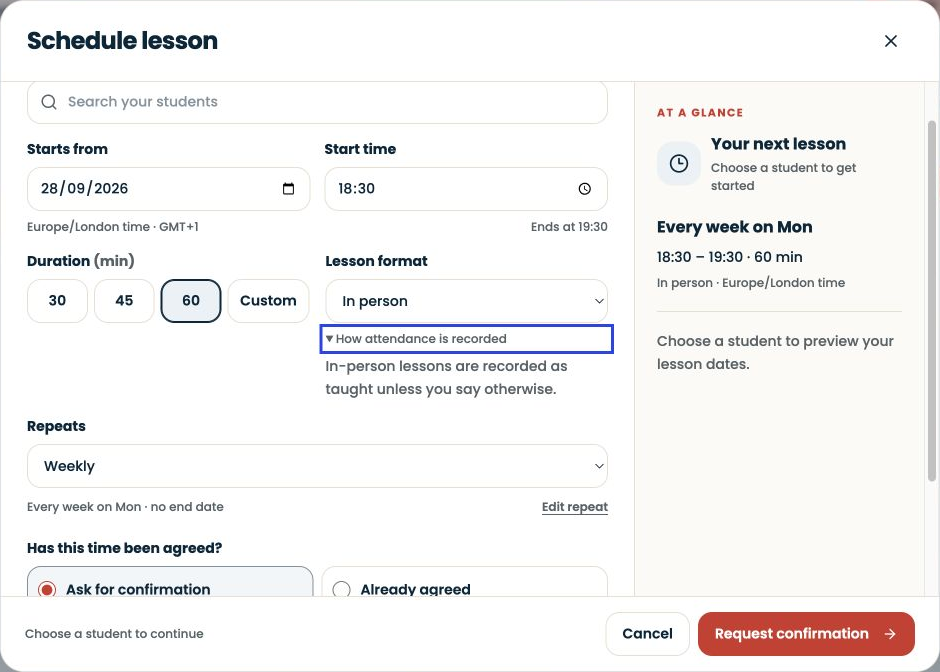
Follow the numbered steps and highlighted controls. Screenshots show the actual SYNKii interface; example dates and settings may differ from yours.
1
Find Invoices in the menu
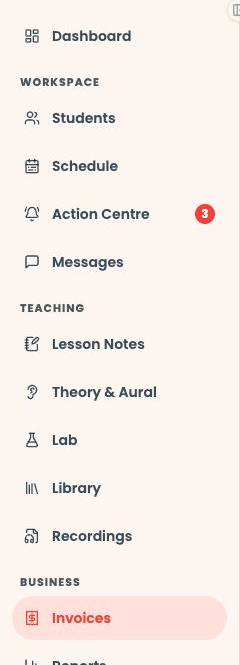
Start on your teacher dashboard. Look down the navigation menu for the Business heading, then click Invoices. If the menu is folded away, open it first to see the names.
Open full-size screenshot ↗Platform screenshot: Actual dashboard menu: Invoices is under Business. Plan & Billing is for your SYNKii subscription.
Check: The Invoices page opens.
2
Open Billing settings
Select Billing settings at the top right of Invoices, then open Pricing & timing.
Open full-size screenshot ↗Platform screenshot: Billing settings is highlighted in yellow in the upper-right corner of Invoices.
Check: You are editing your lesson-billing settings.
3
Set your rate and timing
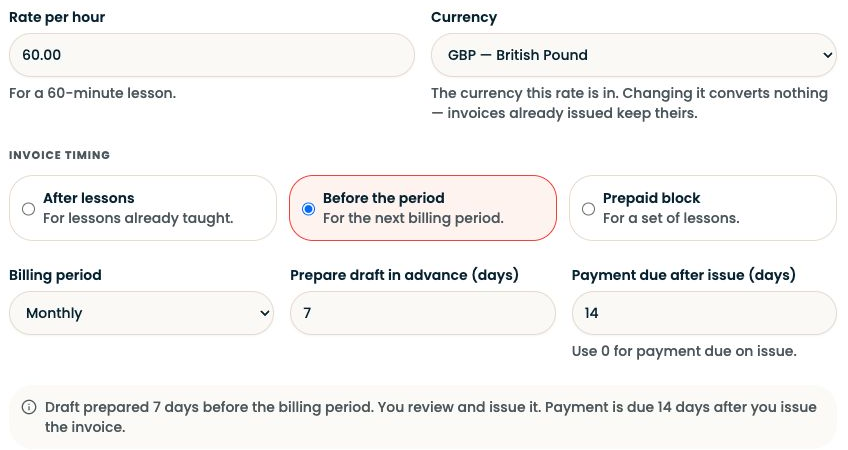
Enter Rate per hour and Currency. Choose After lessons, Before the period or Prepaid block. Set the billing period or block size, then the draft timing and Payment due after issue (days). Use 0 if payment is due immediately.
Open full-size screenshot ↗Platform screenshot: Actual rate and timing controls. The amounts and intervals shown are examples, not required settings.
Check: The summary below the fields describes when the draft is prepared and when payment is due.
4
Save the default
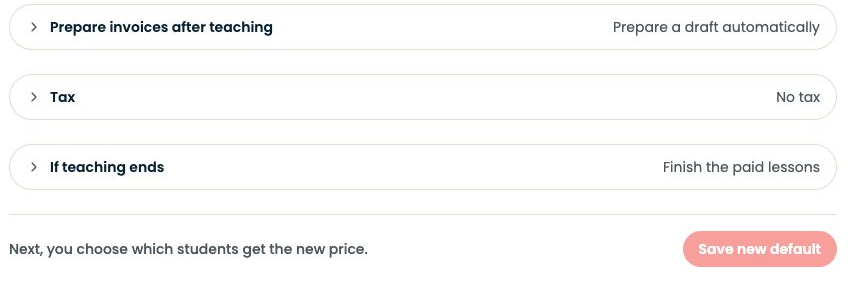
Review the optional invoice-preparation, tax and ending settings. Choose Set rate or Save new default, as shown. Follow the options to choose which students receive the price; saving a default alone does not change existing agreements.
Open full-size screenshot ↗Platform screenshot: Save new default is at the bottom of Pricing & timing. It becomes available when you make a change.
Optional: Only change tax, invoice-preparation or ending settings when they apply to your teaching arrangement.
Check: Check the intended students and any acceptance requirement before expecting a new rate on their invoices.
5
Open Payment details
Select Payment details beside Pricing & timing. Add bank details, payment instructions, or both. For bank payments, check the account holder, sort code and account number; open Currency & other bank details if needed.
Optional: Bank details are optional if families use another payment method. Provide clear payment instructions instead.
Check: Use details for the account or payment method you want families to pay.
6
Save clear payment instructions
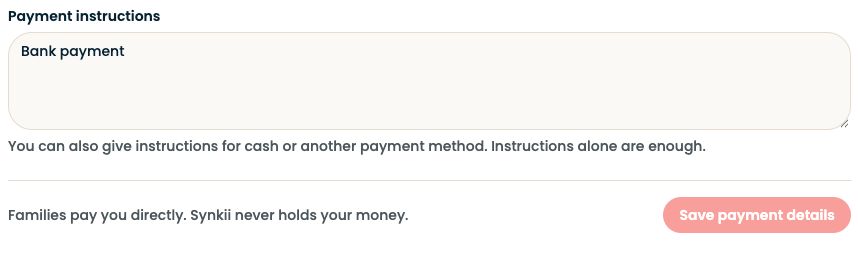
In Payment instructions, explain how to pay and which reference to use—for example, “Bank transfer; use the invoice number as your reference.” Choose Save payment details, then check a draft invoice.
Open full-size screenshot ↗Platform screenshot: The actual Payment instructions field and Save payment details button. Bank account information is excluded.
Check: Families pay you directly. Saving instructions does not collect payment or mark an invoice paid.
Can’t find the same screen? Check that you are in the right account and have selected the right learner or lesson. On a small screen, open the navigation menu to see the page names. Read any access or availability message before continuing.
Which invoice timing should I choose?
Setting
Best for
After lessons
Billing for lessons already taught.
Before the period
Advance billing for a period, such as a month.
Prepaid block
A fixed number of lessons.
Draft preparation does not send an invoice. Payment due after issue starts from the issue date.
For your recurring lessons, check automatic draft preparation and the billing timing in your settings. Then review the prepared draft in Invoices and issue it when ready; you do not need to create a new invoice each time.
A different price for one learner
Use A price for this student in the invitation or the learner’s teaching agreement. This keeps your studio default unchanged. Your teaching fees are separate from your SYNKii subscription.
Who receives a new default price?
Saving a default does not apply it to everyone. Review the student selection and choose Apply, Ask them first or Do nothing for the intended students. Apply sets the price from the chosen start date; Ask them first sends a proposal for acceptance. Do nothing keeps that learner’s current arrangement.
When saving your first default, existing unpriced students start unchecked. You can save the default and decide about students later. When changing it, check the selection again—students with their own individual price should not be changed accidentally.
For a learner who is Not billed in Synkii, use Set a price to bill in Synkii on their teaching agreement and review the start date and earlier-lesson choices. If a price request is already open, resolve or take back that request before applying a different price.
Put information where it will still make sense when you return to it. A student's ongoing context and an observation from one lesson serve different purposes.
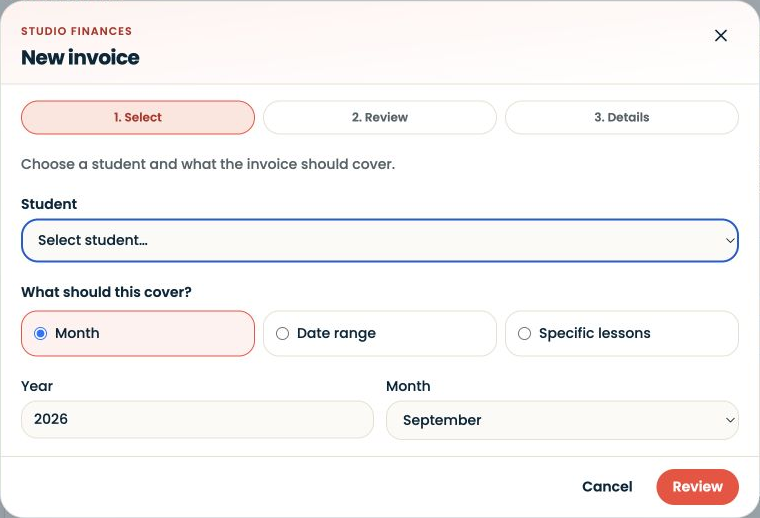
Use Dashboard → Studio admin to reach invoice work, or open Invoices directly.
Studio Management3 slides ↗
A little choice. A clearer experience.
Your privacy, your choice.
We use essential storage to keep Synkii working. With your permission, we also use PostHog to understand page use and measure which campaigns lead to signups. No session recordings.