Keep SYNKii open in another tab. Follow the steps for your task; optional actions are labelled so you know what can wait.
Follow the numbered steps and highlighted controls. Screenshots show the actual SYNKii interface; example dates and settings may differ from yours.
1
Find Schedule on your dashboard
Schedule is under Workspace in the left menu. To open the lesson form directly from the main dashboard, use Schedule lesson at the top right. Opening the form does not create a lesson.
Open full-size screenshot ↗Platform screenshot: Actual main dashboard: Schedule in the left menu and Schedule lesson at the top right are outlined.
Check: The Schedule page or lesson form opens.
2
Select the student
Click the student search field near the top of the form. Type the learner’s name, then click the matching result. Check the selected name.
Open full-size screenshot ↗Platform screenshot: student search is at the top; date, time and duration are below it.
Check: The intended learner is selected.
3
Set the date and time
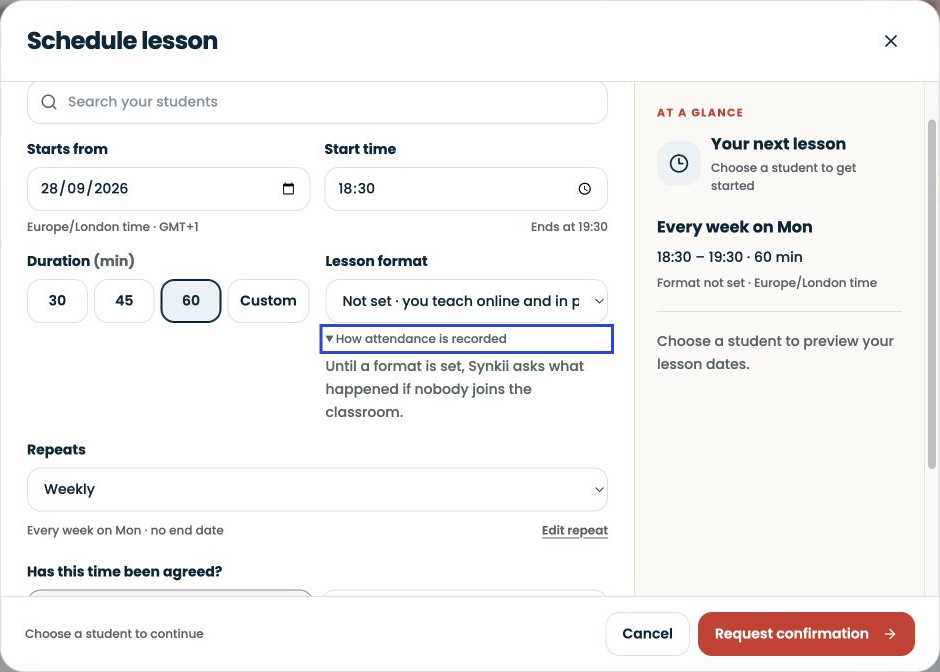
Click the start date and choose the agreed day. Enter the start time, then choose the lesson duration. Read the end time and time zone before continuing.
Open full-size screenshot ↗Platform screenshot: Start date, time and duration are below the student search field.
Check: The displayed start and end match your agreement.
4
Choose online or in person
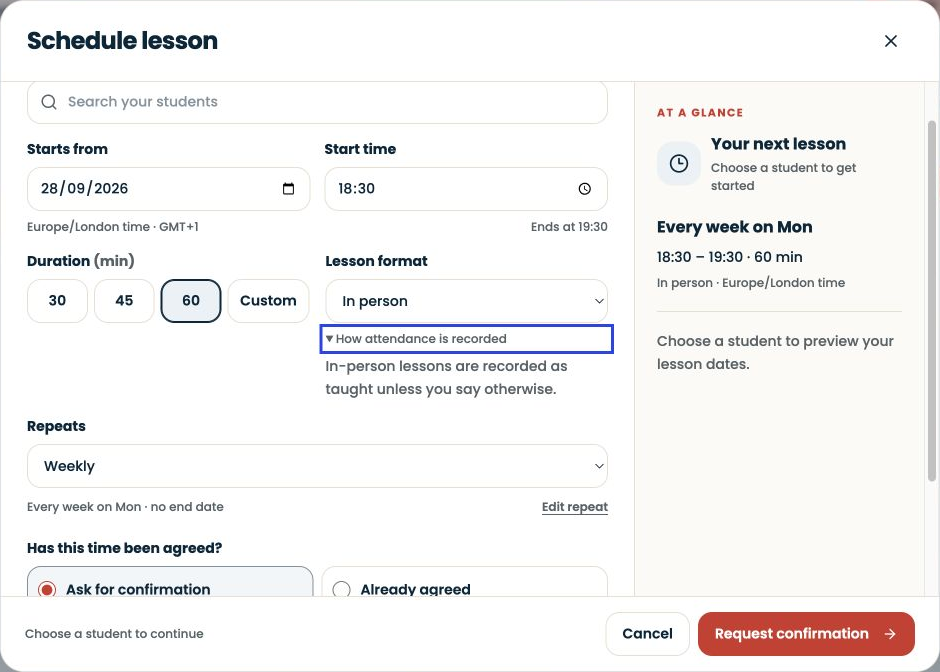
Find Lesson format and choose the format for this lesson. If you are teaching in your studio, choose In person. You can still use the classroom tools.
Check: The selected format matches how you will teach.
5
Review and schedule
Check the dates and repeat setting. Choose Already agreed only if the family has agreed the time; otherwise choose Ask for confirmation. Use the final scheduling button and check whether the lesson is confirmed or awaiting acceptance.
Open full-size screenshot ↗Platform screenshot: Check Repeats and whether the time has been agreed before using the scheduling button.
Optional: Repeating lessons are optional. For a one-off lesson, choose a non-repeating arrangement.
Check: The lesson appears in your schedule. Check more than one date if it repeats.
6
Find the lesson again
Click Schedule in the dashboard menu. Find the date you chose and open the lesson’s Details. Check the learner, time and format.
Open full-size screenshot ↗Platform screenshot: Return to Schedule using the highlighted menu item, then find your lesson date.
Check: You can find the lesson you just created.
Can’t find the same screen? Check that you are in the right account and have selected the right learner or lesson. On a small screen, open the navigation menu to see the page names. Read any access or availability message before continuing.
If a lesson is missing
Check the selected date, time zone and learner before creating another lesson.
A learner who joined a connection-only invitation can have one-off or recurring lessons even while Not billed in Synkii. Setting a price is separate from scheduling. If initial terms are still waiting for an answer, resolve that request first; Already agreed only records agreement to the lesson time.
Change an existing lesson
Open its Details and check whether your change affects one lesson or the whole series. Follow any confirmation request and check the resulting status.
On the teaching day
Choose Enter classroom from the scheduled lesson. For online teaching, check your connection and audio; for in-person teaching, use your studio device.
Put information where it will still make sense when you return to it. A student's ongoing context and an observation from one lesson serve different purposes.
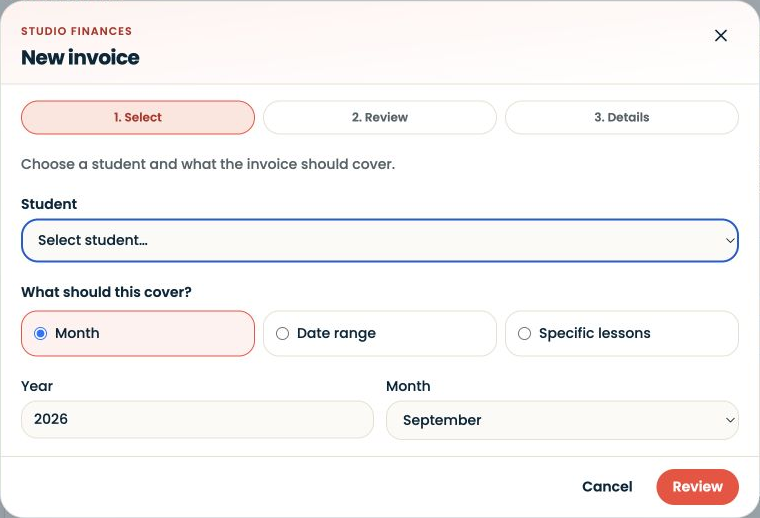
Use Dashboard → Studio admin to reach invoice work, or open Invoices directly.
Studio Management3 slides ↗
A little choice. A clearer experience.
Your privacy, your choice.
We use essential storage to keep Synkii working. With your permission, we also use PostHog to understand page use and measure which campaigns lead to signups. No session recordings.