Create an invoice from checked lesson records, then keep its payment status aligned with what actually happened. SYNKii’s invoice record is not proof that money has arrived.
Start the record during the lesson
For Pro and Studio, open the scheduled lesson’s SYNKii Classroom for both online and in-person teaching. Do this at the start of the lesson rather than waiting until invoice time: the session and attendance record provide context for the later billing workflow. Studio teachers also use this lesson context for lesson notes.
After teaching, review the recorded outcome and correct any missed session or attendance detail before creating an invoice. Opening the Classroom is part of the workflow, not a guarantee that attendance or charges need no review. Starter teachers maintain attendance using their plan’s scheduling tools.
Prepare the records
Review the student, lesson dates, attendance and agreed charges first. Resolve duplicates or unclear rescheduling before generating the invoice.
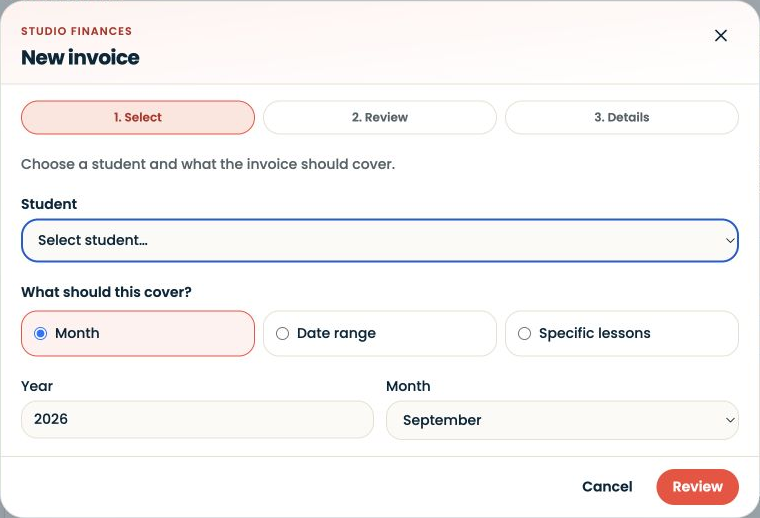
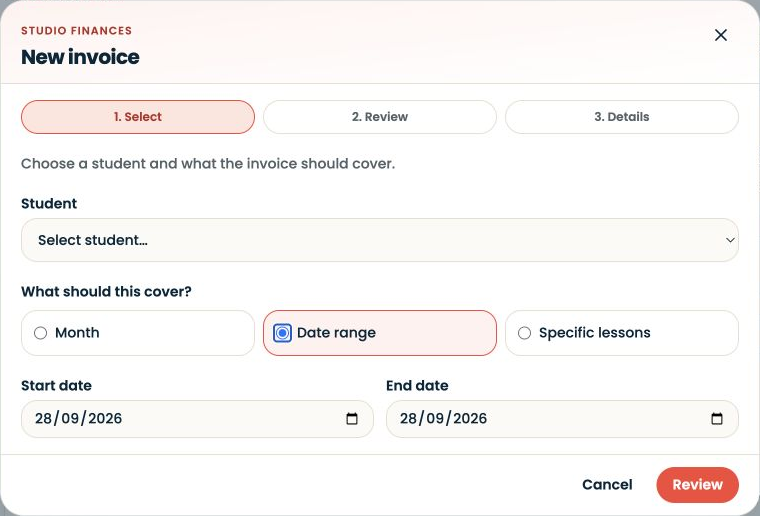
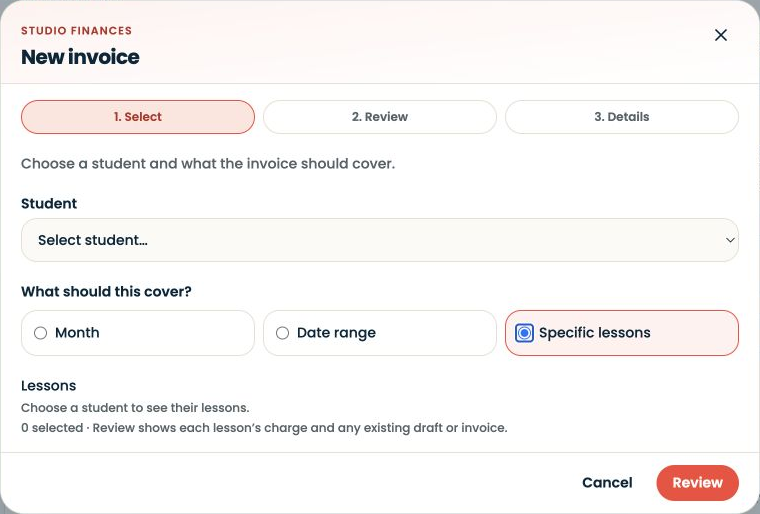
In Invoices, start the invoice creation flow. Choose the active student and the coverage: a month, a date range or specific lessons. Review the selected lessons, descriptions and prices before creating the draft.
Review before sending
Check who the invoice is for, which lessons it covers, the total, currency and payment details. Compare it with your agreement with the family. A four-lesson example at £30 per lesson totals £120; this is an illustration, not a suggested lesson rate.
Check any due-date and delivery information presented. Only send a real invoice when its details are correct. For a demonstration, use demo invoice scenarios rather than issuing a real bill.
Track what happens next
A sent invoice awaiting payment is different from a paid invoice. Record payment only after checking your actual payment records. Do not mark an invoice paid because the lesson happened or the family says they intend to pay.
If an amount or lesson is disputed, review the underlying records and the agreement before changing the invoice. Keep the explanation clear for the family.
Keep the two subscriptions separate
Your SYNKii subscription pays for platform access. Your student’s invoice concerns your teaching fees. Those are different transactions.