Start the day with the next learner
- 01
Next lesson
Check who you will teach and when.
- 02
Student context
Find the current goal and last useful observation.
- 03
Prepare
Open the score and choose one question to investigate.
Open Dashboard.
Step-by-step explanation
Start with the dashboard
- Open Dashboard.
- Today’s teaching shows the selected day’s lessons; choose Details to inspect a lesson and Enter classroom when it is available.
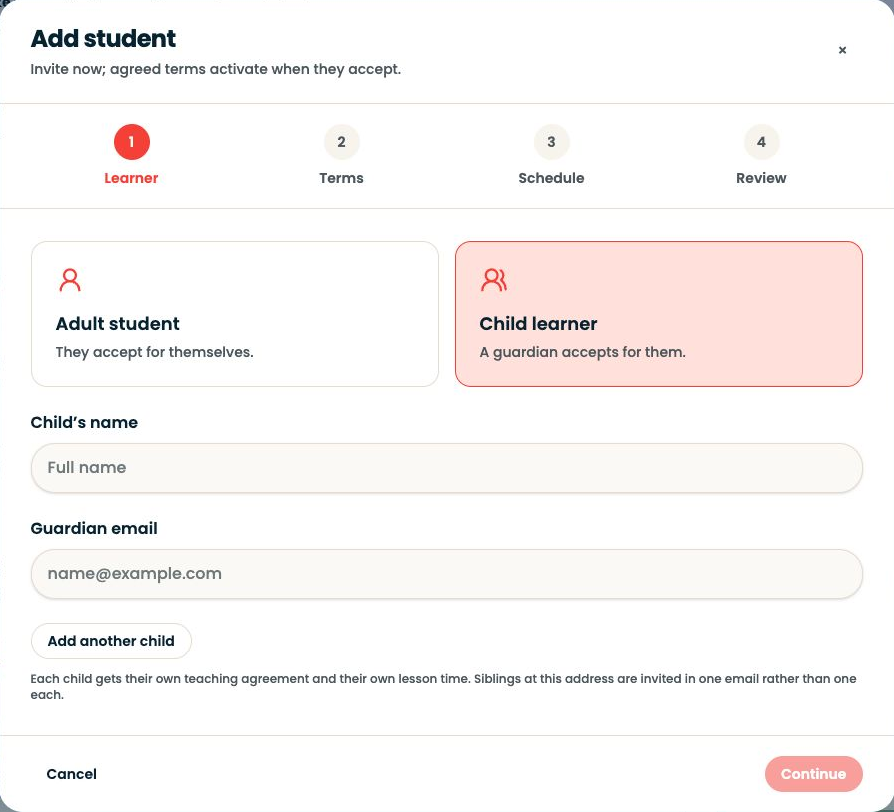
- Use Add student or Schedule lesson for new arrangements.
- A little attention leads to Action Centre, Studio admin links to billing work, and Learning, in motion brings recent learning activity together.
- Use Your week, at a glance to review the teaching week.
Written walkthrough
Use the steps above in the correct account and teaching relationship. Check that the intended lesson, student or resource is selected before making changes. If an action is unavailable, check your plan and the current lesson or assignment status. Confirm the result on screen before leaving the page.