Keep SYNKii open in another tab. Follow the steps for your task; optional actions are labelled so you know what can wait.
Follow the numbered steps and highlighted controls. Screenshots show the actual SYNKii interface; example dates and settings may differ from yours.
1
Find Students in the menu
Start on your teacher dashboard. Look down the navigation menu for the Workspace heading, then click Students. If the menu is folded away, open it first to see the names.
Open full-size screenshot ↗Platform screenshot: Main teacher dashboard: Students is under Workspace in the left menu. Select Students to open your learner list.
Check: The Students page opens.
2
Start the invitation
Choose Add student at the top right of Students. You can also use Add student directly from the dashboard, shown here.
Open full-size screenshot ↗Platform screenshot: The dashboard’s Add student shortcut is at the top right, beside Schedule lesson.
Check: The invitation opens at the Learner stage. Terms and scheduling are optional—you can set both up later from your dashboard.
3
Fill in the learner details
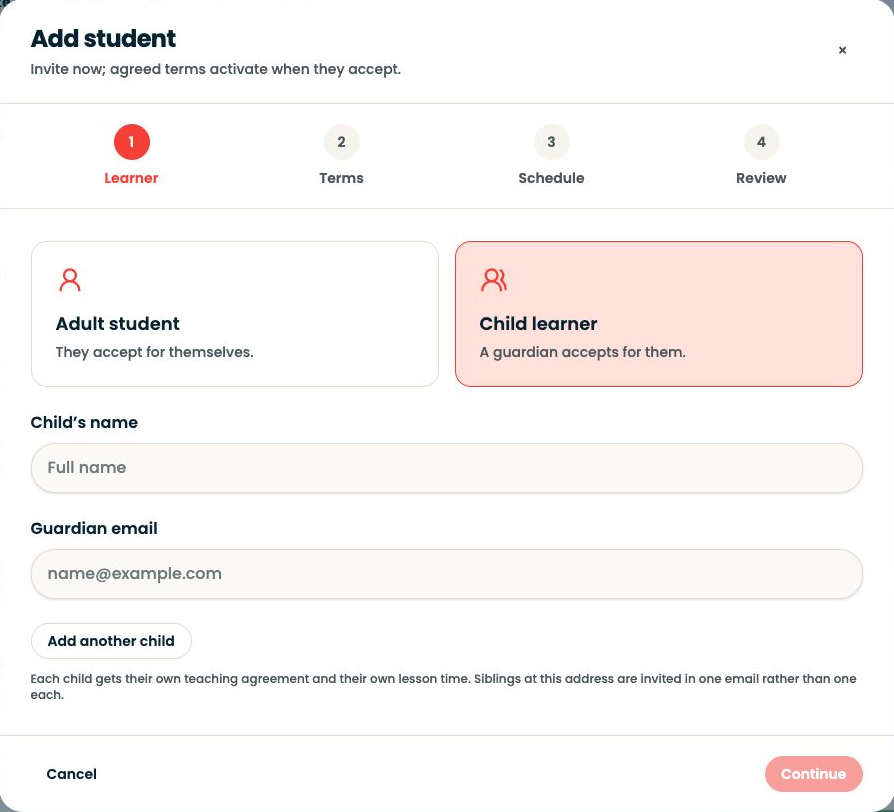
For a child, select Child learner, enter the child’s name and the guardian’s email, then Continue. The guardian accepts the invitation and manages agreements, schedule requests and invoices. The child has a separate learning view for lessons, practice and shared materials. For an adult, select Adult student and use their own name and email.
Open full-size screenshot ↗Platform screenshot: Actual Child learner form: Child’s name and Guardian email. Add another child is available for siblings.
Check: Check the email belongs to the person who will accept. Existing accounts can be linked; two new accounts are not always needed.
4
Choose the terms
*Optional — you can set this later
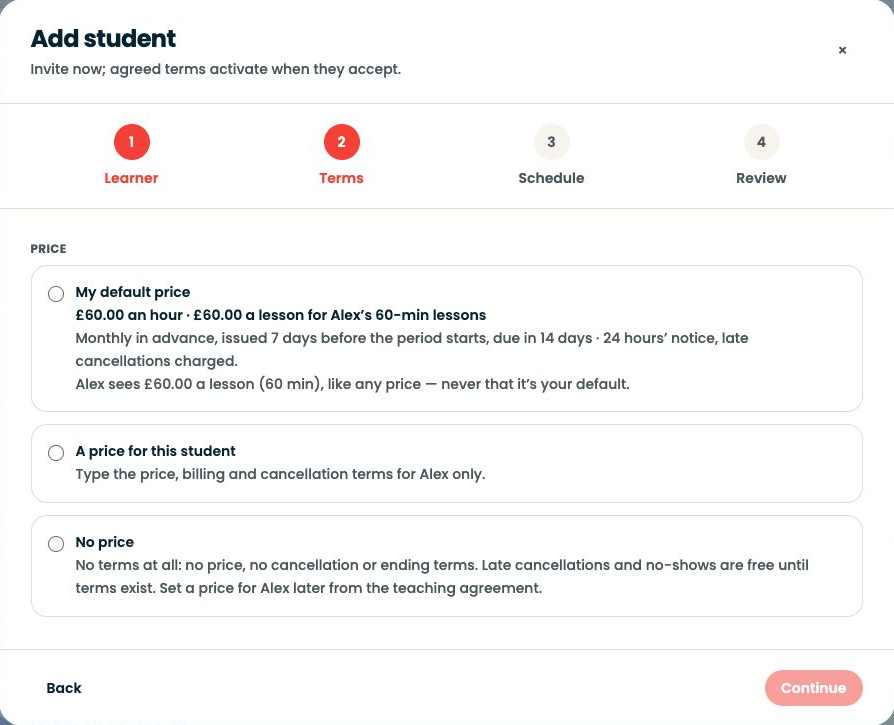
My default price uses the default you set in Invoices → Billing settings. A price for this student lets you agree a different price and billing arrangement for this learner only. No price leaves pricing, cancellation and ending terms unset; late cancellations and no-shows are free until terms exist.
Open full-size screenshot ↗Platform screenshot: The three actual pricing choices in the Terms stage. Alex is a fictional example.
Check: Choose No price if you want to invite now and set terms later from the learner’s teaching agreement.
5
Set an individual arrangement, if needed
*Optional — you can set this later
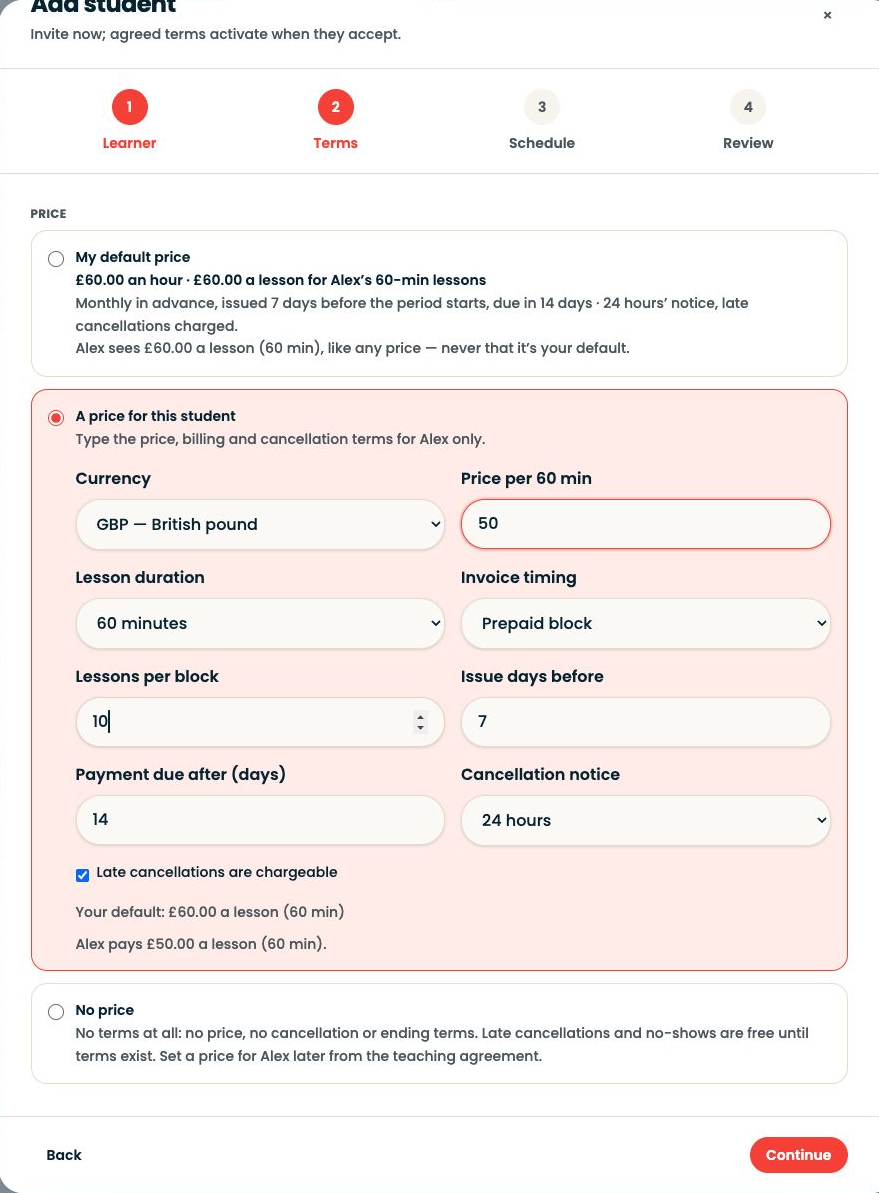
For example, select A price for this student, enter £50 per 60 minutes, choose Prepaid block and set Lessons per block to 10. That is £500 for ten hour-long lessons. Check the issue timing, payment deadline, cancellation notice and late-cancellation checkbox, then Continue. These example terms do not change your studio default.
Open full-size screenshot ↗Platform screenshot: Example: a ten-lesson prepaid block at £50 per 60-minute lesson, instead of the default monthly arrangement.
Check: The rate, duration, block size and cancellation terms match your agreement. See the settings explanation below.
6
Propose a schedule now, or set it later
*Optional — you can set this later
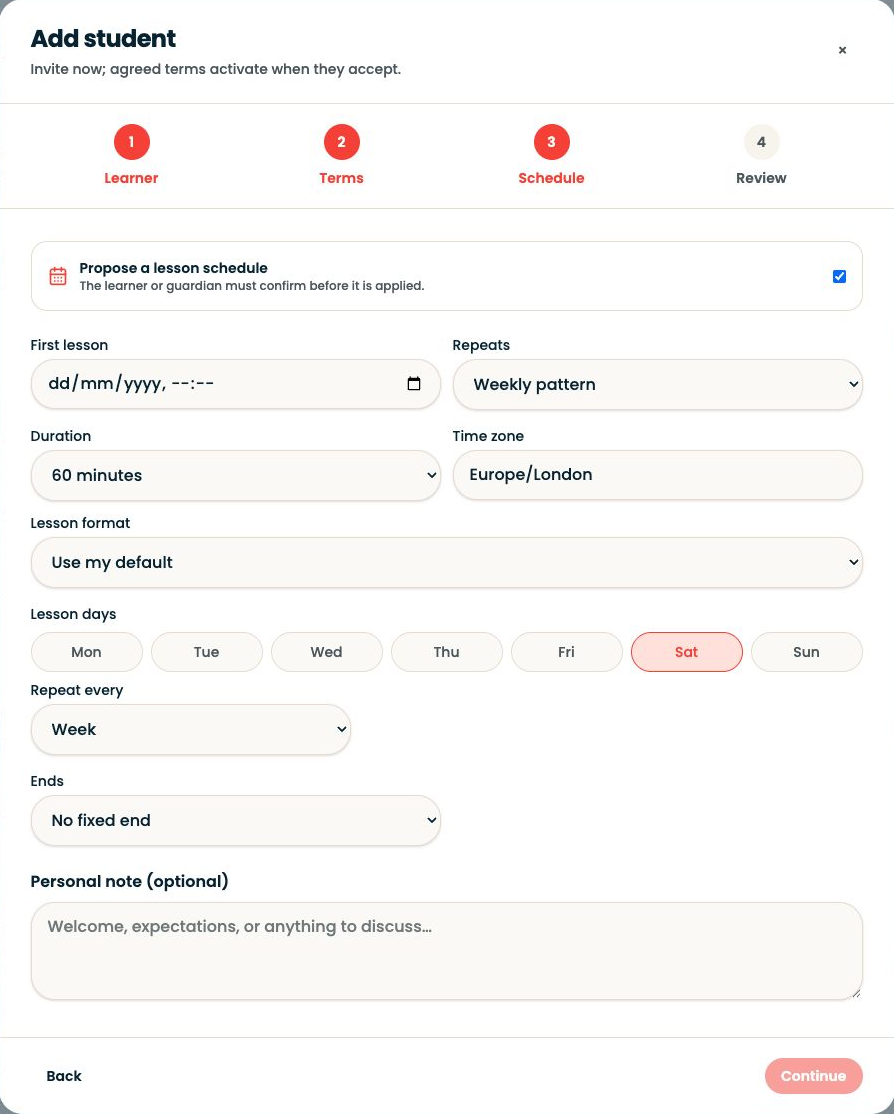
Turn on Propose a lesson schedule to add the first lesson, repeats, duration, time zone and format. The adult or guardian must accept the proposal before it applies. Leave it off to arrange lessons later from Schedule. When scheduling later, choose Already agreed only if the family has already agreed the time; otherwise ask for confirmation.
Open full-size screenshot ↗Platform screenshot: Actual optional Schedule stage. Leave the checkbox off if you will schedule later.
Check: Check all dates and repeat settings, or leave the schedule for later.
7
Review, then send the invitation
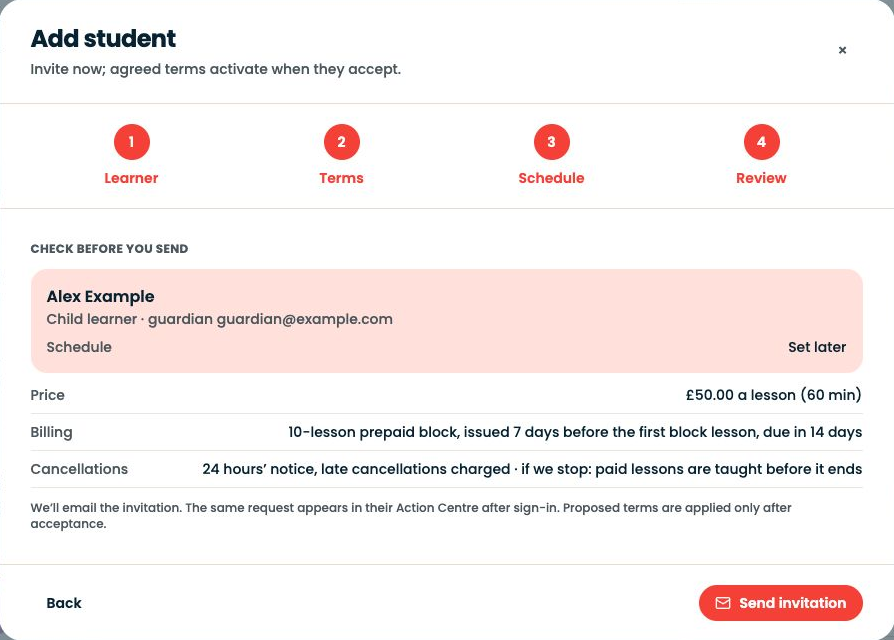
Check the child’s name, guardian email, price, billing terms and schedule. Use Back to correct anything. When the details are right, choose Send invitation.
Open full-size screenshot ↗Platform screenshot: Final review for fictional Alex Example: ten-lesson block, with the schedule set later. The invitation shown was not sent.
Check: Sending is not acceptance: proposed terms apply only after the adult or guardian accepts.
8
Help the family join
SYNKii emails the invitation; you can also share its invitation link. Ask the adult or guardian to open it and sign in or create their account. With No price and no proposed schedule, joining connects them immediately—there are no terms to answer. If you included terms or a schedule, ask them to review and accept those proposals.
Open full-size screenshot ↗Platform screenshot: Actual invitation page with fictional names. The recipient continues as a student or guardian. Only invitations containing proposals need a subsequent terms review.
Check: Return to Students to check the connection. Check acceptance separately for any terms or schedule you proposed.
Can’t find the same screen? Check that you are in the right account and have selected the right learner or lesson. On a small screen, open the navigation menu to see the page names. Read any access or availability message before continuing.
Terms settings reference
Use this reference if you choose an individual arrangement in step 5.
Setting
What it controls
Currency, price and lesson duration
The amount charged for the duration shown.
Invoice timing
Billing after lessons, before a period, or for a prepaid block.
Billing period / lessons per block
The period or number of lessons covered by each invoice.
Issue days before
How far ahead advance or block billing is prepared. Review the draft before issuing it.
Payment due after (days)
How long the family has to pay after issue.
Cancellation notice
How much notice the family must give.
Late cancellations are chargeable
Whether a cancellation inside that notice period is charged.
Check the ending terms on the review screen too. The example amounts are teaching fees, not SYNKii charges.
If the family cannot get started
Check that they opened the invitation link rather than only the sign-in page, and that they are signed into the account matching the invitation email. If an existing relationship appears, inspect it before sending another invitation.
Use Students for a learner’s record, Schedule for lesson times, Action Centre for items needing a decision and Messages for conversations.
Getting Started1 min ↗
A little choice. A clearer experience.
Your privacy, your choice.
We use essential storage to keep Synkii working. With your permission, we also use PostHog to understand page use and measure which campaigns lead to signups. No session recordings.