Keep SYNKii open in another tab. Follow the steps for your task; optional actions are labelled so you know what can wait.
Follow the numbered steps and highlighted controls. Screenshots show the actual SYNKii interface; example dates and settings may differ from yours.
1
Find Invoices in the menu
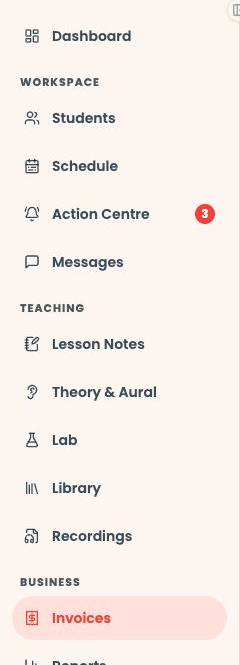
Start on your teacher dashboard. Look down the navigation menu for the Business heading, then click Invoices. If the menu is folded away, open it first to see the names.
Once your recurring lessons and billing settings are set up, SYNKii prepares drafts according to your billing timing. Open the draft for the correct learner and billing period. Keep this draft: you do not need to archive it or create a new invoice each time.
Open full-size screenshot ↗Platform screenshot: An existing draft ready to review, shown with fictional data. Check its lessons and amounts before issuing.
Check: The draft covers the learner and period you intend to bill.
3
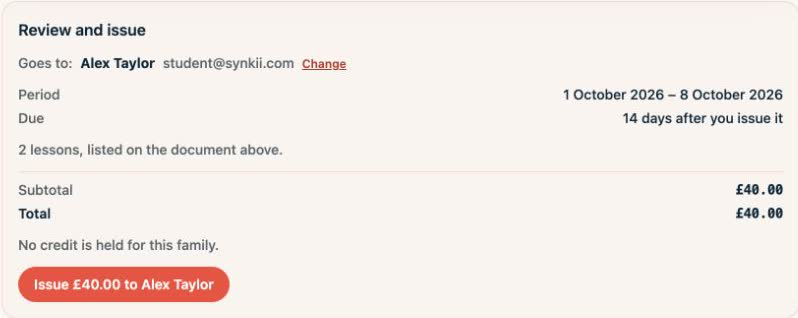
Review and issue
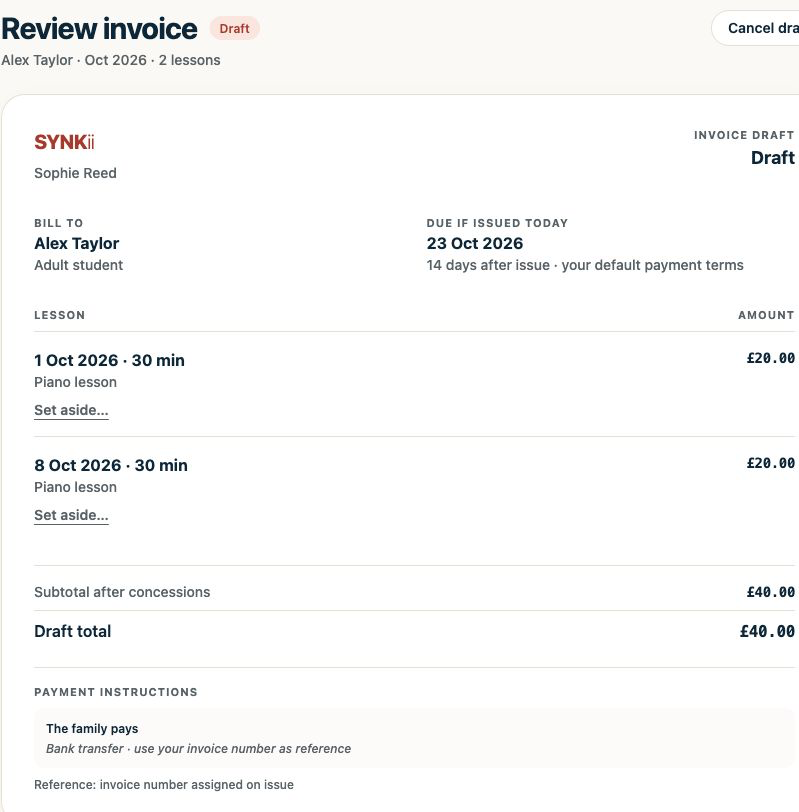
Choose Review and issue. Check the recipient, lesson charges, credits, currency, total, due date and payment instructions. Confirm only when correct; otherwise keep the draft while you resolve the issue.
Open full-size screenshot ↗Platform screenshot: Actual Review and issue controls with fictional data. Check the recipient, period, due date and total before issuing.
Check: The invoice is issued. Check delivery information separately.
Can’t find the same screen? Check that you are in the right account and have selected the right learner or lesson. On a small screen, open the navigation menu to see the page names. Read any access or availability message before continuing.
If no draft is ready
Check the lesson schedule and billing settings, including automatic draft preparation and billing timing. A draft may not be due yet. For your usual recurring lessons, let SYNKii prepare it, then follow the review and issue steps above.
Optional: create an invoice manually
Use this for a one-off invoice or lessons that are not covered by an existing draft:
1
Choose the learner and invoice scope
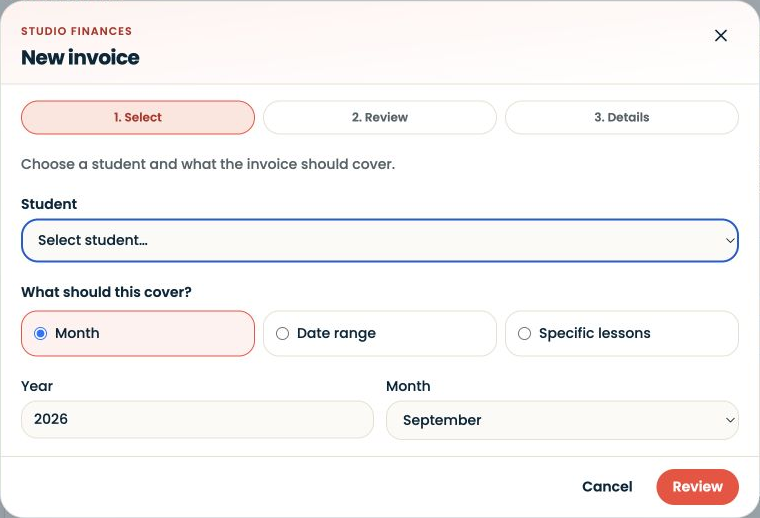
Select New invoice, then choose the learner in Student. Choose Month for a calendar month or Date range for a custom period.
Choose the learner first, then the period. Select the picture to enlarge it.
2
Select individual lessons only if needed
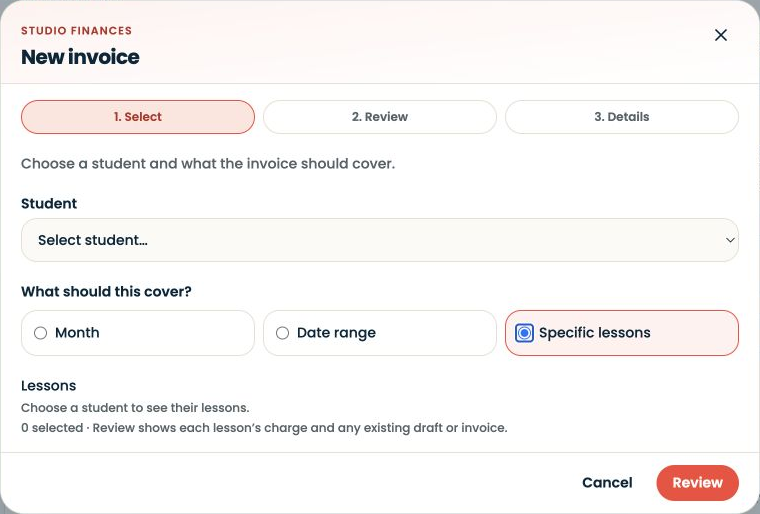
Choose Specific lessons if you only want to bill selected lessons. Once you choose the student, their lessons appear here. Select the lessons you need, then press Review.
Specific lessons is an alternative to Month or Date range. This screen shows where the lesson selection appears.
3
Review the selection and save a draft
Check each lesson’s date, duration and charge. Resolve any warnings before selecting Continue to details. Check the payment terms and notes, then select Create draft. If SYNKii offers Open existing draft or Use existing draft, use that draft when it already covers what you need.
The resulting draft: check the included lessons and total. This picture shows the saved draft, not the composer’s Details stage.
4
Review and issue when ready
Follow Review and issue above. Creating a draft does not send the invoice to the family.
Final review before issuing: check the recipient, payment details and total.
You do not need to archive an automatically prepared draft to use it. Creating another invoice for the same lessons is not part of the usual flow.
Check delivery
Use the invoice’s delivery information to check whether it reached the family. An issued status or an opened PDF alone does not confirm email delivery. If needed, use the available share or download option and your agreed communication channel.
After issuing
Leave the balance outstanding until payment arrives. Then follow Record a payment.
For a mistake, use the issued invoice’s correction options. Creating a duplicate does not replace the original invoice.
Put information where it will still make sense when you return to it. A student's ongoing context and an observation from one lesson serve different purposes.
Use Dashboard → Studio admin to reach invoice work, or open Invoices directly.
Studio Management3 slides ↗
A little choice. A clearer experience.
Your privacy, your choice.
We use essential storage to keep Synkii working. With your permission, we also use PostHog to understand page use and measure which campaigns lead to signups. No session recordings.