Keep SYNKii open in another tab. Follow the steps for your task; optional actions are labelled so you know what can wait.
Follow the numbered steps and highlighted controls. Screenshots show the actual SYNKii interface; example dates and settings may differ from yours.
1
Find Invoices in the menu
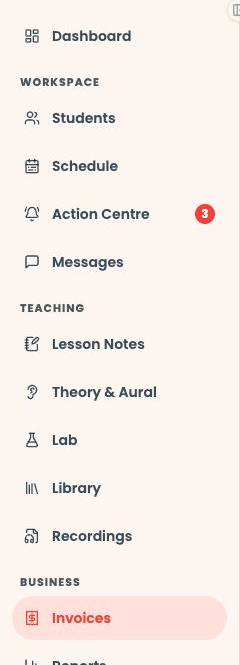
Start on your teacher dashboard. Look down the navigation menu for the Business heading, then click Invoices. If the menu is folded away, open it first to see the names.
Find the family’s issued invoice and click it. Match the invoice with the money you have actually received in your bank, payment provider or cash record.
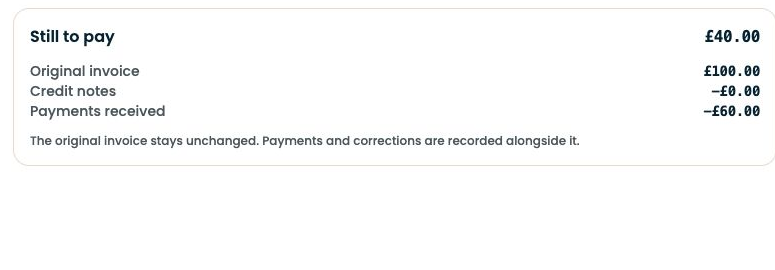
Open full-size screenshot ↗Platform screenshot: Once you open the invoice, check Still to pay. This fictional example has £40 outstanding; also match the payer and reference before recording anything.
Check: The payer, amount and reference match this invoice.
3
Start a payment record
Check existing payments first. Open Payments & credit on the issued invoice, then choose Record payment. You can also use Record payment from its row in Invoices.
Open full-size screenshot ↗Platform screenshot: The actual Payments & credit panel with Record payment selected, using fictional invoice data.
Check: The payment form opens.
4
Enter what arrived
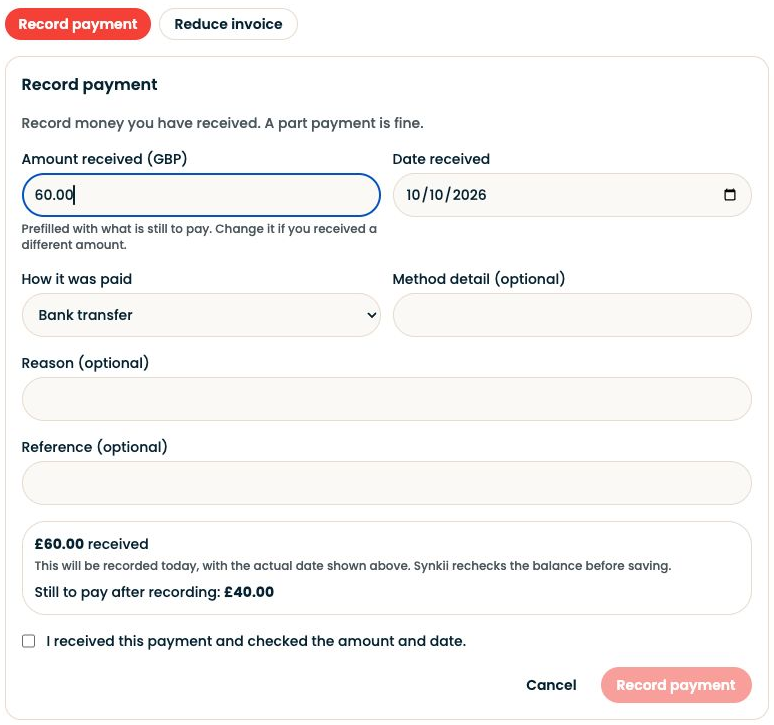
Enter the amount received, payment date and How it was paid. Change the suggested full balance if this is a partial payment. Check the details, tick I received this payment and checked the amount and date, then choose Record payment.
Open full-size screenshot ↗Platform screenshot: Example only: £60 received against £100 leaves £40 to pay. Nothing was recorded against a real invoice.
Optional: Add a reference or reason only if it helps identify the receipt. Record only the money actually received.
Check: The record reflects the money you received.
5
Check the remaining balance
Look at Still to pay and the payment history. A full payment leaves nothing owing; a partial payment leaves the remainder. If you spot an error, inspect Correct payment record.
Open full-size screenshot ↗Platform screenshot: Actual balance component with fictional data: £100 invoiced, £60 received and £40 still to pay.
Check: The invoice balance agrees with your real payment records.
Can’t find the same screen? Check that you are in the right account and have selected the right learner or lesson. On a small screen, open the navigation menu to see the page names. Read any access or availability message before continuing.
If the family reports a payment
Match their report against your bank, payment provider or cash record. Use the confirmation flow shown and check payment history before adding a manual entry, so the same receipt is not counted twice.
If you recorded the wrong amount
Use Correct payment record and check the resulting history and balance. Correcting the record does not return money: handle any actual refund through the payment method used.
Recording a payment does not by itself confirm that an acknowledgement was sent to the family.
Put information where it will still make sense when you return to it. A student's ongoing context and an observation from one lesson serve different purposes.
Use Dashboard → Studio admin to reach invoice work, or open Invoices directly.
Studio Management3 slides ↗
A little choice. A clearer experience.
Your privacy, your choice.
We use essential storage to keep Synkii working. With your permission, we also use PostHog to understand page use and measure which campaigns lead to signups. No session recordings.