Slide walkthrough · 2 min read

Create an invoice and review its payment status

Explore tutorials
Explore step by step3 slides · At your own pace
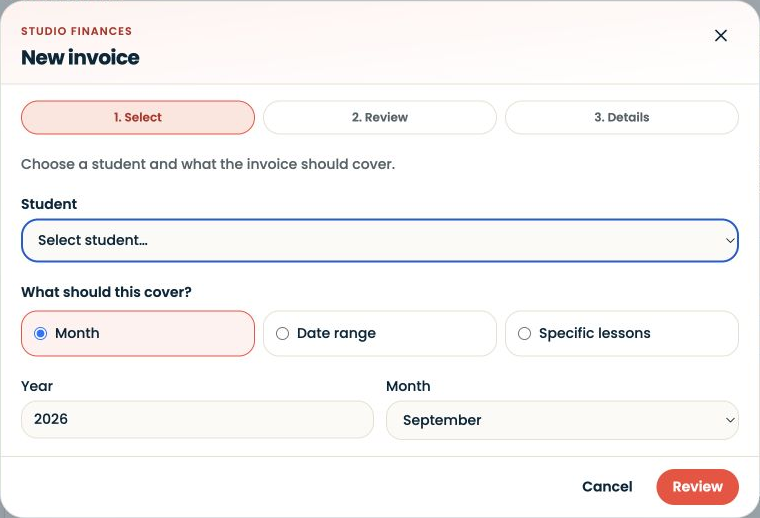
Actual SYNKii interface: One calendar month. Open Invoices, then New invoice. Select the student and choose Month. Check the year and month before continuing to Review.
STEP 01

One calendar month

Open Invoices, then New invoice. Select the student and choose Month. Check the year and month before continuing to Review.

Enlarge screenshot
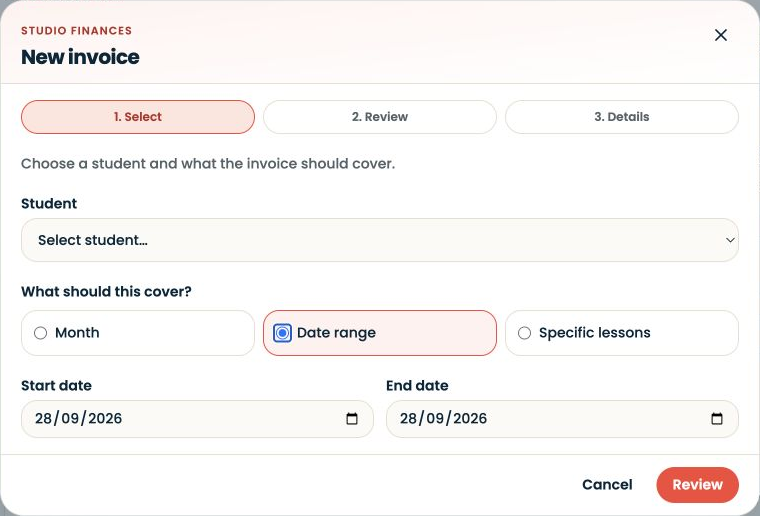
Actual SYNKii interface: A custom date range. Choose Date range when your billing period crosses calendar boundaries. Check both dates and then review the lessons that fall within them.
STEP 02

A custom date range

Choose Date range when your billing period crosses calendar boundaries. Check both dates and then review the lessons that fall within them.

Enlarge screenshot
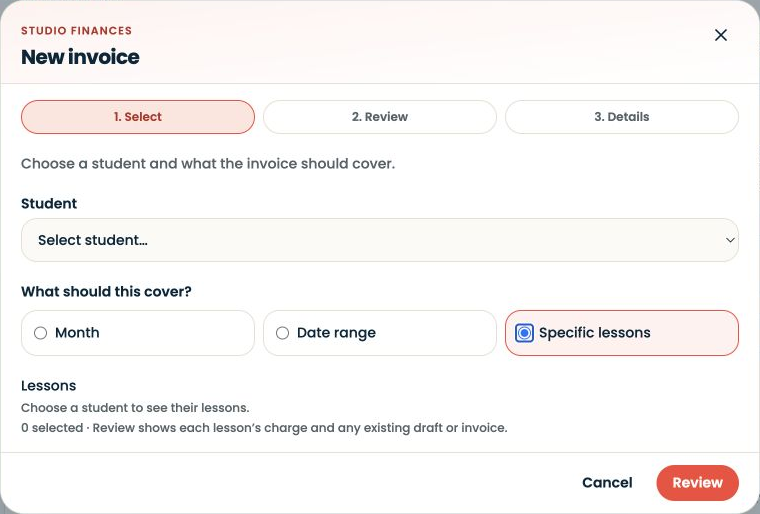
Actual SYNKii interface: Individual lessons. Choose Specific lessons to select the lessons individually. The list appears after choosing a student. These captures stop before draft creation, sending or recording payment.
STEP 03

Individual lessons

Choose Specific lessons to select the lessons individually. The list appears after choosing a student. These captures stop before draft creation, sending or recording payment.

Enlarge screenshot

Three ways to select the lesson period · Actual platform captures · September 2026

Use Dashboard → Studio admin to reach invoice work, or open Invoices directly.

Written walkthrough

Use Dashboard → Studio admin to reach invoice work, or open Invoices directly. Before creating a draft, check lesson outcomes and any pending decisions in Action Centre. Review the student, coverage and charges. Record payments only after checking that they were received; platform subscription payments are managed separately in Plan & Billing.

Step-by-step explanation

Month. Choose the year and calendar month. Check that they match the period you intend to bill.

Date range. Choose the start and end dates for a period that does not match a calendar month. Review the included lessons rather than assuming the dates selected the intended set.

Specific lessons. Choose the student to reveal the available lessons, then select the individual occurrences. The empty example explains why no lessons appear before a student is selected.

Review the draft

Check the recipient, lesson descriptions, dates, prices, currency, total and payment details. Compare the draft with your agreement with the family. Resolve any duplicate or disputed lesson before sending.

Review payment status

A sent invoice awaiting payment is different from a paid record. Check your actual payment records before recording a payment; completing a lesson is not evidence that money has arrived. These slides do not demonstrate collecting a lesson fee.
Read the invoicing guide.

You’re in control

Privacy preferences

Choose what you share. Optional measurement stays off until you agree. Your choice is remembered for 180 days.
