Keep SYNKii open in another tab. Follow the steps for your task; optional actions are labelled so you know what can wait.
Follow the numbered steps and highlighted controls. Screenshots show the actual SYNKii interface; example dates and settings may differ from yours.
1
Find Students in the menu
Start on your teacher dashboard. Look down the navigation menu for the Workspace heading, then click Students. If the menu is folded away, open it first to see the names.
Open full-size screenshot ↗Platform screenshot: Students is highlighted under Workspace on the main teacher dashboard.
Check: The Students page opens.
2
Open the right learner
Click the learner’s name. Check their name at the top of the page before continuing.
Open full-size screenshot ↗Platform screenshot: After opening a learner, check the name at the top. This example is Demo Student; their record tabs are underneath.
Check: You are looking at that learner’s record.
3
Open assignments
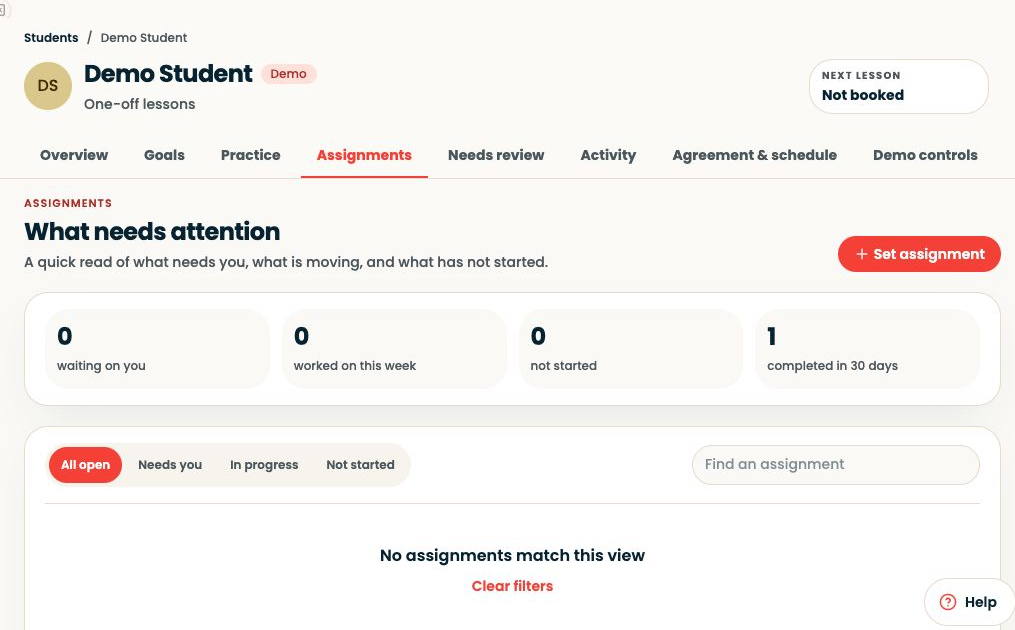
In the learner’s record, click Assignments. Choose Set assignment to open the form.
Open full-size screenshot ↗Platform screenshot: The demo learner’s Assignments tab: Set assignment is at the top right.
Check: The assignment form opens for the intended learner.
4
Describe one clear task
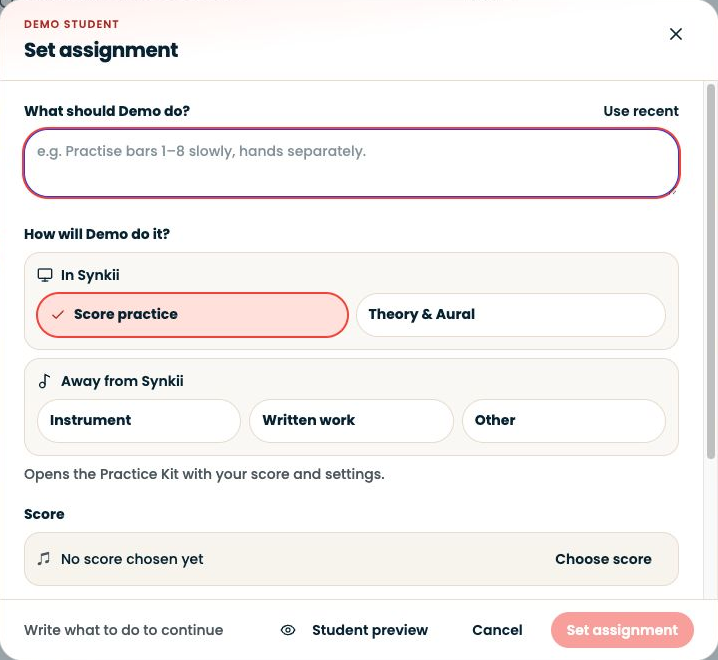
In What should your student do?, write the passage or exercise and how much to practise. Choose how they will do it. For Score practice, choose the score; for Theory & Aural, select the exercise. Check the goal and due settings.
Open full-size screenshot ↗Platform screenshot: The actual assignment form: enter the instruction and choose how the learner will do the work.
Optional: Attach a resource only if the task needs it. A manual task can use written instructions; a digital exercise needs its exercise settings checked.
Check: The task tells the student where to begin.
5
Try, then assign
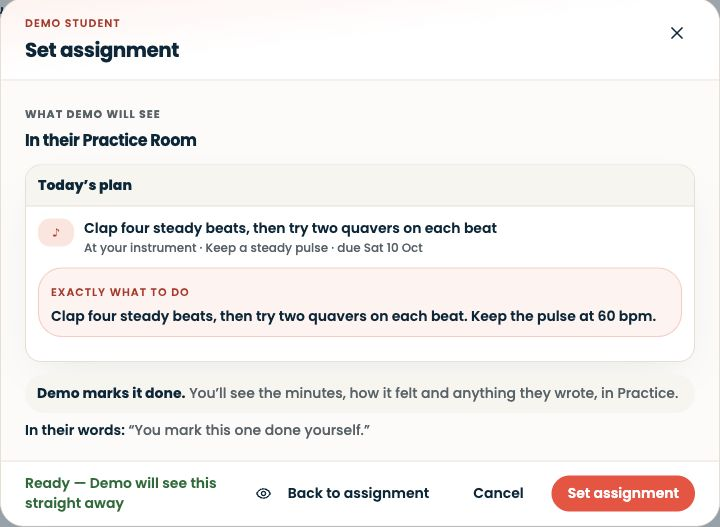
Use Student preview to check what the learner will see. Try the first passage or question together, then choose Set assignment. Check that the task appears in their assignment list.
Open full-size screenshot ↗Platform screenshot: Student preview shows how this example task will appear in the learner’s Practice Room.
Check: The learner has an assigned task. A saved draft or template is not assigned work.
Can’t find the same screen? Check that you are in the right account and have selected the right learner or lesson. On a small screen, open the navigation menu to see the page names. Read any access or availability message before continuing.
Manual task or digital exercise?
Use a manual task for work such as a passage from a piece. Use a digital exercise when the available Theory & Aural activity suits your goal. Preview reused templates to check their difficulty.
Save for later
If Save as a draft is offered, you can stop there and return later. Drafts and saved templates are not assigned work.
After the learner has tried the task, use Review student progress to decide what to practise next.
We use essential storage to keep Synkii working. With your permission, we also use PostHog to understand page use and measure which campaigns lead to signups. No session recordings.