Keep SYNKii open in another tab. Follow the steps for your task; optional actions are labelled so you know what can wait.
Follow the numbered steps and highlighted controls. Screenshots show the actual SYNKii interface; example dates and settings may differ from yours.
1
Find Students in the menu
Start on your teacher dashboard. Look down the navigation menu for the Workspace heading, then click Students. If the menu is folded away, open it first to see the names.
Open full-size screenshot ↗Platform screenshot: Students is highlighted under Workspace on the main teacher dashboard.
Check: The Students page opens.
2
Open the right learner
Click the learner’s name. Check their name at the top of the page before continuing.
Open full-size screenshot ↗Platform screenshot: After opening a learner, check the name at the top. This example is Demo Student; their record tabs are underneath.
Check: You are looking at that learner’s record.
3
Find practice sessions
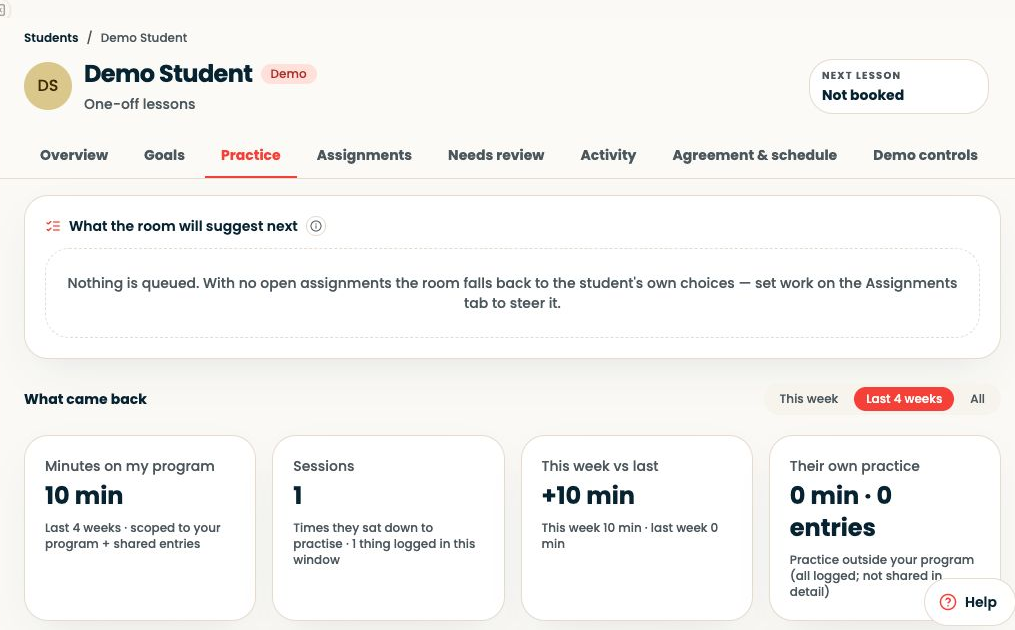
Click Practice in the learner’s record. Find the session or date you want to review and open it.
Open full-size screenshot ↗Platform screenshot: Demo learner’s Practice tab: choose a time period to review their activity.
Check: The selected session’s activities and report are visible.
4
Read the result
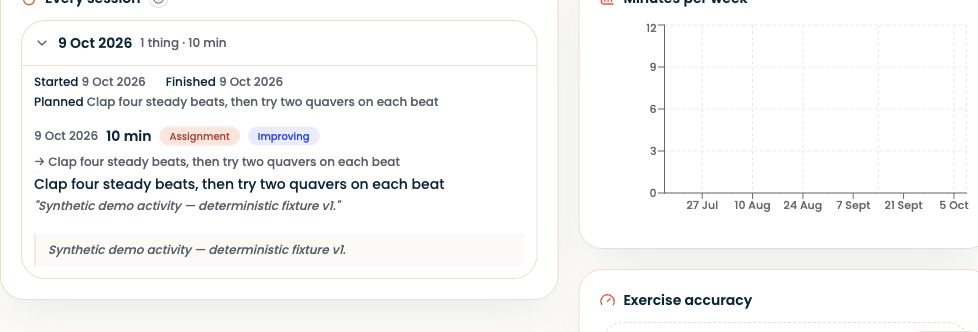
Look at the activities attempted and the available results. Digital exercises may show accuracy. Read any reflection alongside the result; not every activity has an accuracy score.
Open full-size screenshot ↗Platform screenshot: Expanded demo practice evidence: time, activity and reflection appear together.
Check: You can identify a specific task to revisit.
5
Prepare the next task
*Optional — Only if a change is needed
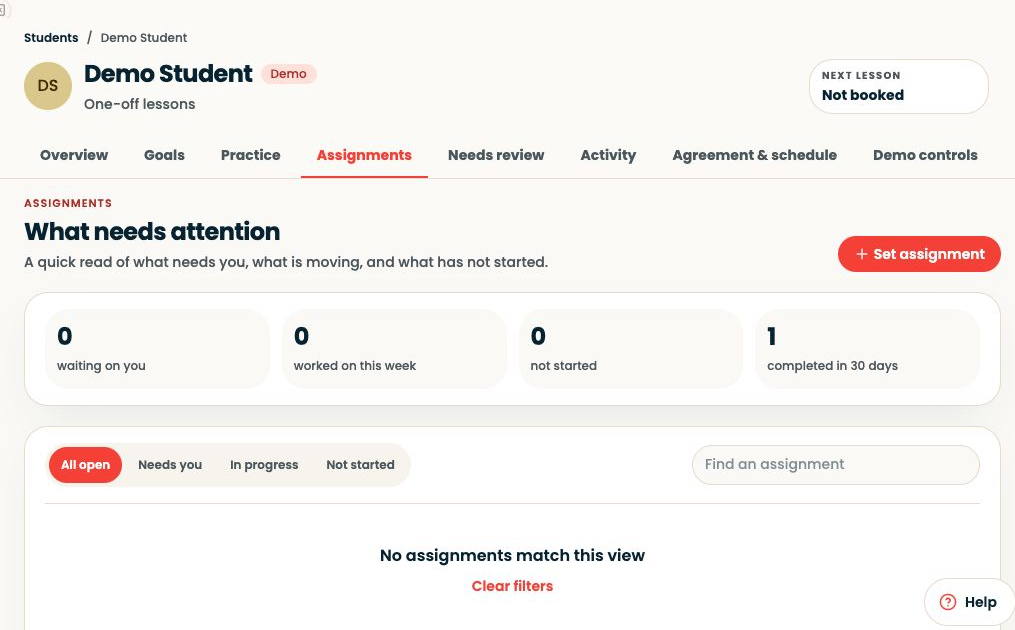
If the evidence suggests a change, open Assignments and adjust the next task. Preview it before assigning. You can keep the current task if it still suits the learner.
Open full-size screenshot ↗Platform screenshot: Return to Assignments and use Set assignment if the learner needs a new task.
Check: The next assignment fits what you learned from the session.
Can’t find the same screen? Check that you are in the right account and have selected the right learner or lesson. On a small screen, open the navigation menu to see the page names. Read any access or availability message before continuing.
Read results in context
Completion and time spent do not tell the whole story. Compare attempts with the task you set, read the learner’s reflection and listen to them in the next lesson. Manual and instrumental tasks may not have an accuracy score.
If no practice is shown
Check the learner, date and assignment state. Work may still be a draft, or the learner may have practised away from SYNKii. Review from your teacher account; you do not need to sign in as the student.
We use essential storage to keep Synkii working. With your permission, we also use PostHog to understand page use and measure which campaigns lead to signups. No session recordings.