Keep SYNKii open in another tab. Follow the steps for your task; optional actions are labelled so you know what can wait.
Follow the numbered steps and highlighted controls. Screenshots show the actual SYNKii interface; example dates and settings may differ from yours.
1
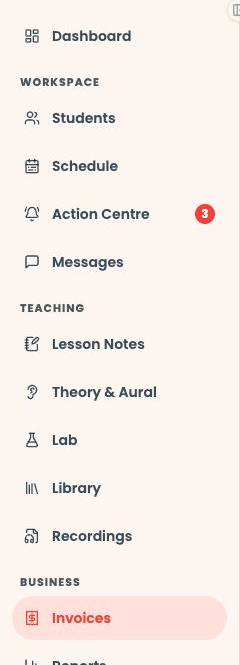
Find Lab in the menu
Start on your teacher dashboard. Look down the navigation menu for the Teaching heading, then click Lab. If the menu is folded away, open it first to see the names.
Open full-size screenshot ↗Platform screenshot: Find Lab under Teaching in the dashboard menu. The yellow outline marks the destination; this capture was taken from Invoices.
Check: The Lab page opens.
2
Choose a Lab activity
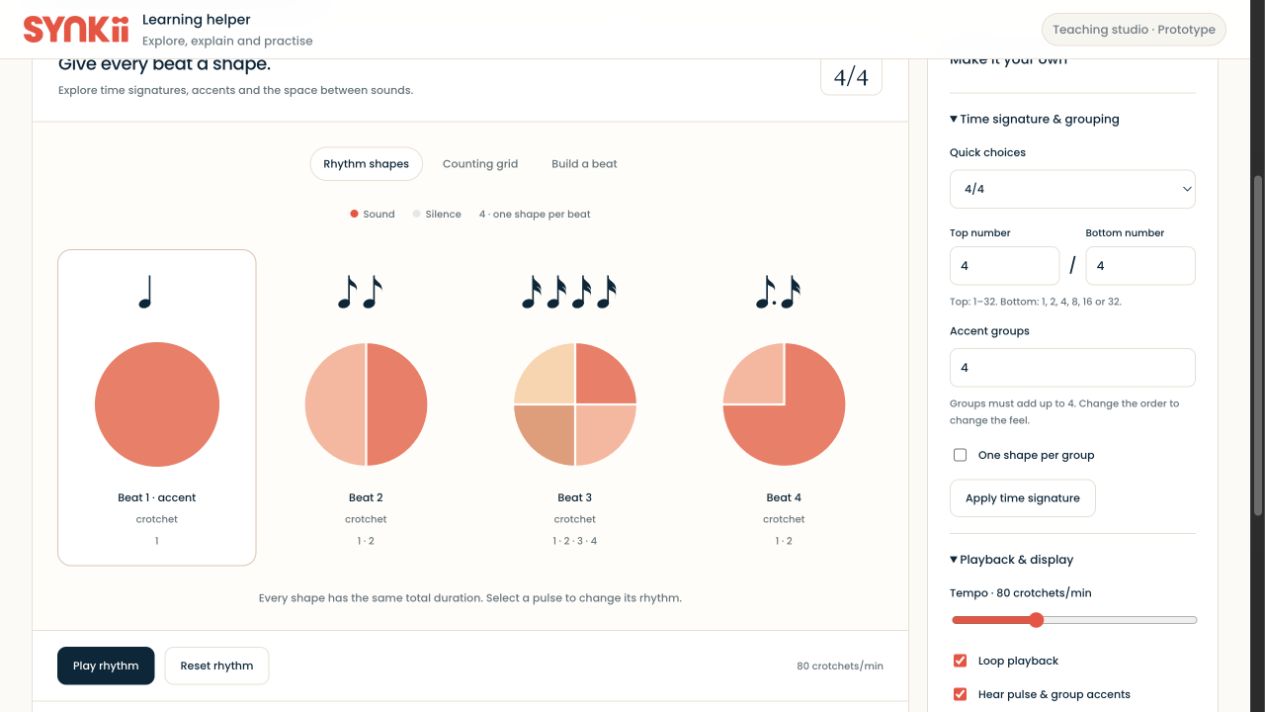
Select the musical area you want to explore, then the relevant module. Change one setting and try the result before showing it to the student.
Check: An exercise builder opens when you select an exercise.
4
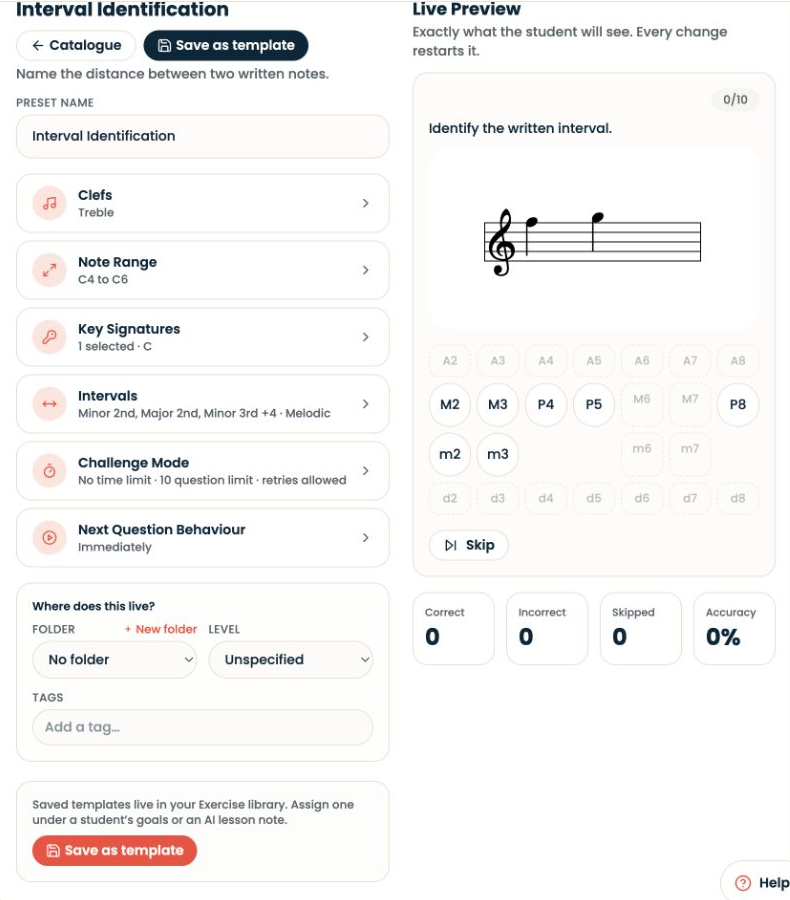
Customise and preview
*Optional — For a digital exercise
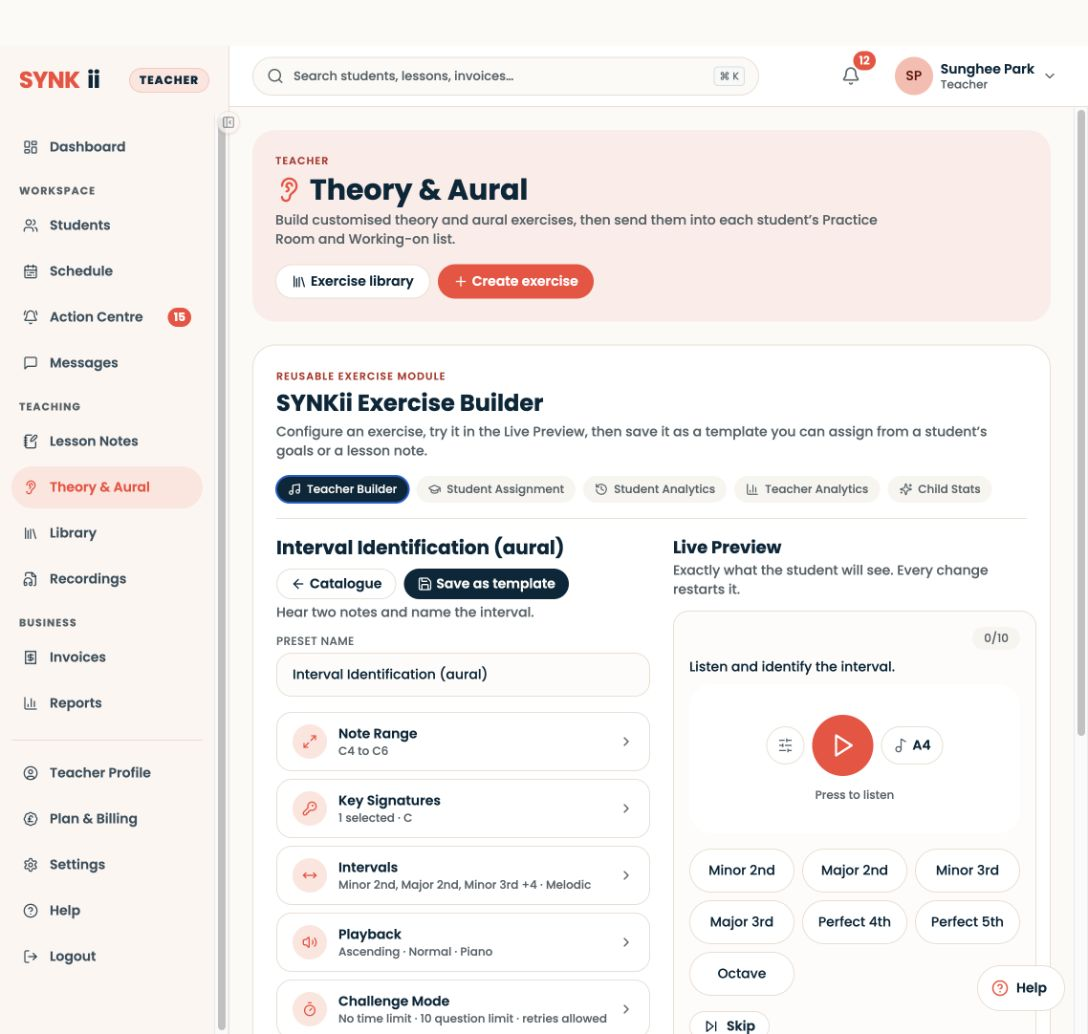
Open a setting to change it. Choose values suitable for the learner, then try the question in Live Preview. For listening exercises, play the audio too.
Check: You have checked the task the student will attempt.
5
Use it in the lesson
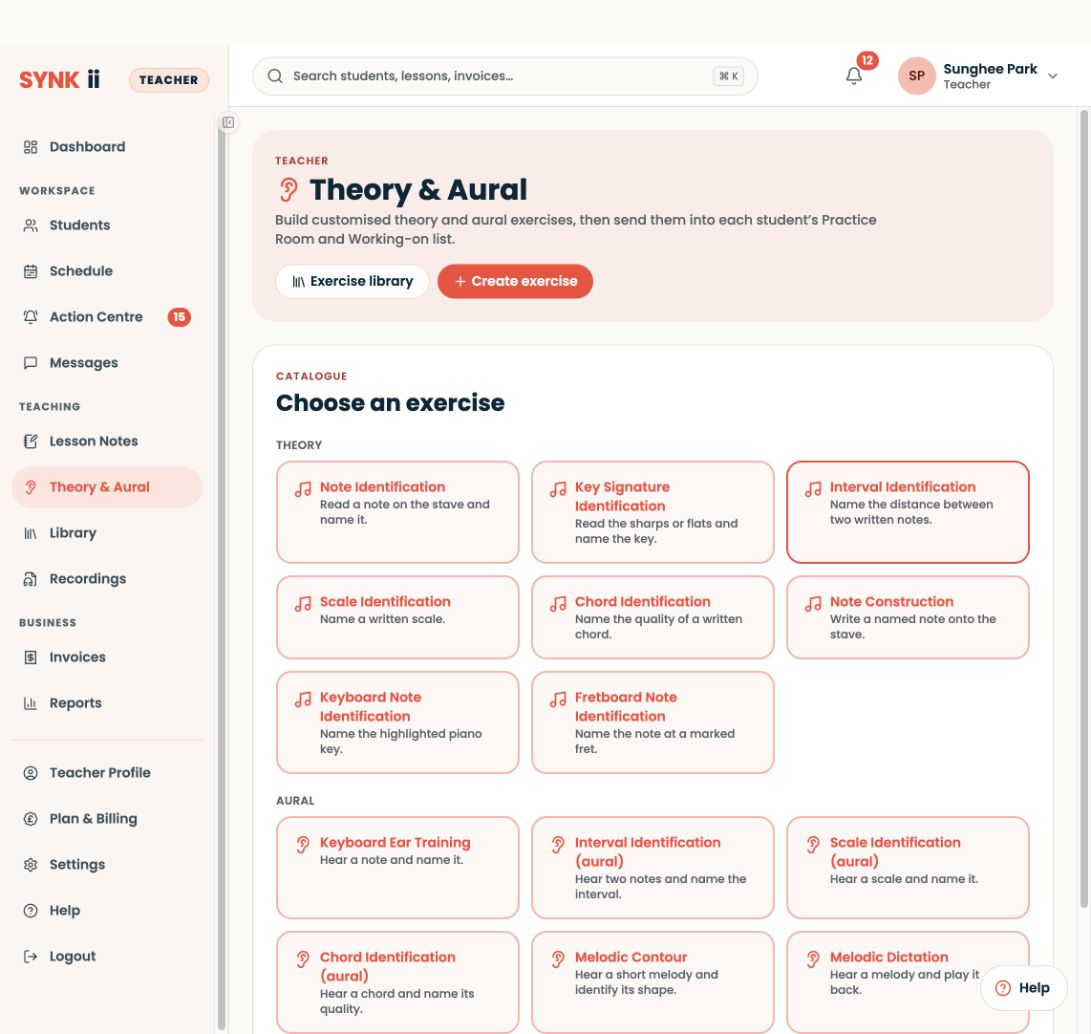
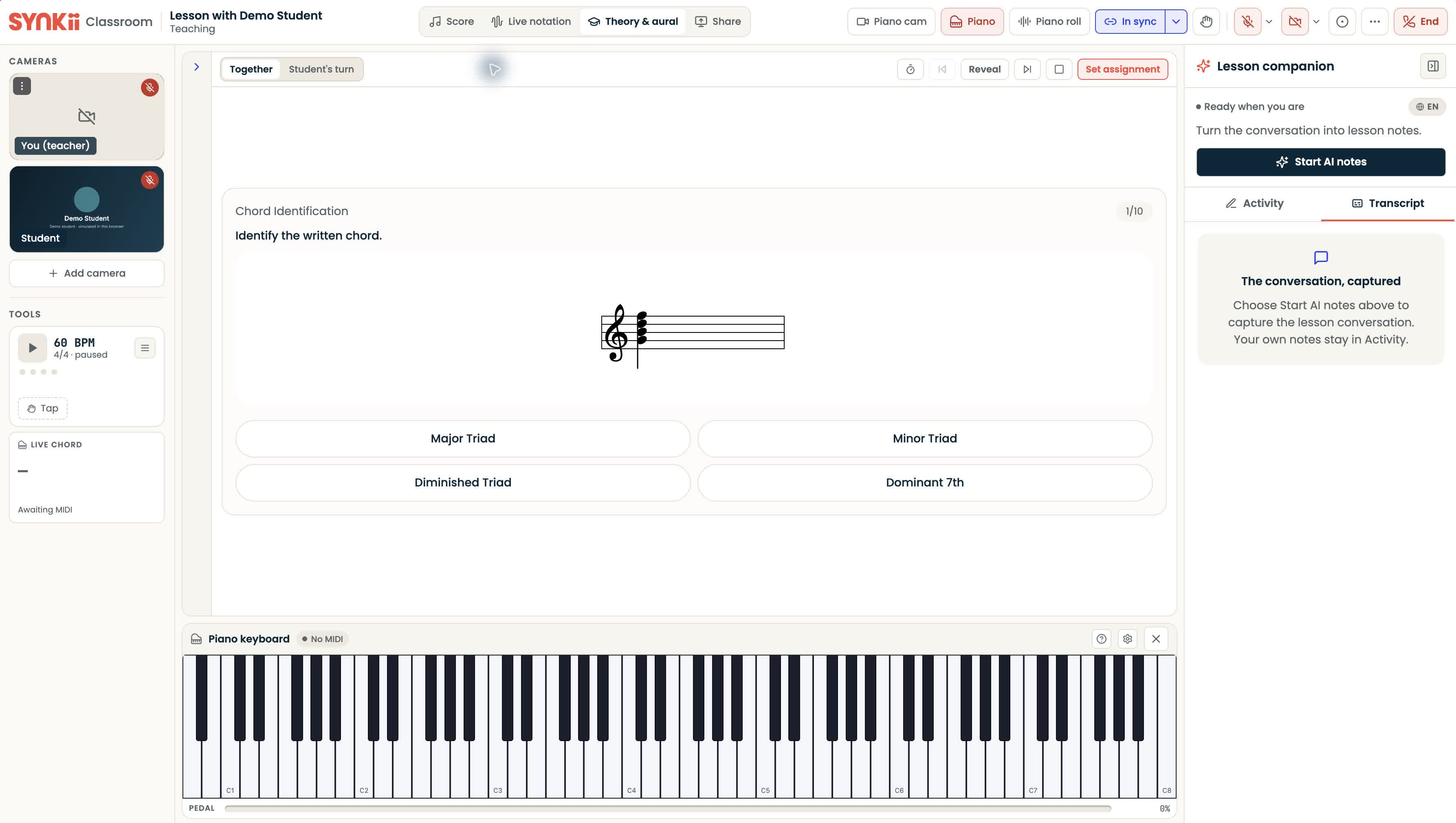
Enter the scheduled classroom and open Lab or Theory & Aural there. Try the activity together, then set the exercise for the learner if appropriate. Saving a template alone does not assign it.
Open full-size screenshot ↗Platform screenshot: The demo classroom with Theory & Aural open in the main teaching area.
Check: The student knows how to attempt the task before practising alone.
Can’t find the same screen? Check that you are in the right account and have selected the right learner or lesson. On a small screen, open the navigation menu to see the page names. Read any access or availability message before continuing.
Choose the route that fits your lesson
Lab is for exploring a musical idea together. Theory & Aural is for preparing focused exercises. You can use either without completing the other route.
Save for another lesson
Saving a template is optional. It keeps an exercise setup for reuse; it does not assign work to a student. To give home practice, follow Set assignments.
If a module is unavailable, check the availability message in your account before planning to use it.
Listen to four original concert-pitch examples. Each contains two notes, played separately at the same intended loudness. Replay as needed before opening the answers.
Use beat shapes and metre settings to make your own rhythm explanations visible.
Theory & Aural1 min ↗
A little choice. A clearer experience.
Your privacy, your choice.
We use essential storage to keep Synkii working. With your permission, we also use PostHog to understand page use and measure which campaigns lead to signups. No session recordings.