Slide walkthrough · 2 min read

Upload a resource and share it with the right student

Explore tutorials
Explore step by step2 slides · At your own pace
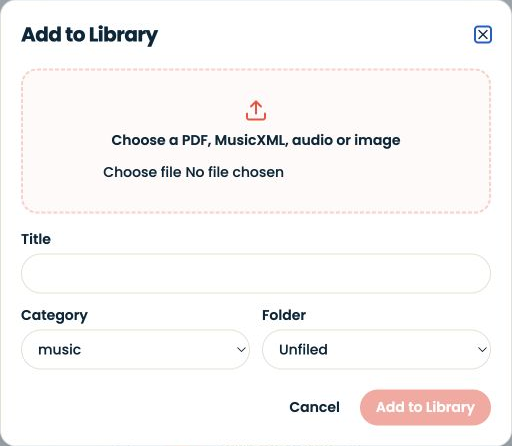
Actual SYNKii interface: Give the material a clear home. Open Library, then Add material. Choose a permitted PDF, MusicXML, audio or image file. Give it a recognisable title, category and folder. This capture shows the empty upload form.
STEP 01

Give the material a clear home

Open Library, then Add material. Choose a permitted PDF, MusicXML, audio or image file. Give it a recognisable title, category and folder. This capture shows the empty upload form.

Enlarge screenshot
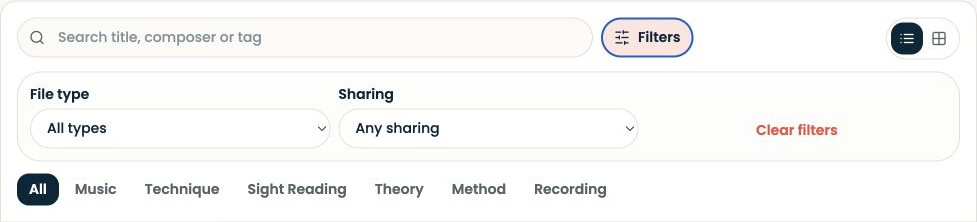
Actual SYNKii interface: Find the right file again. Search by title, composer or tag. Open Filters to narrow by file type and sharing, or choose a category. Uploading, sharing and checking a student's access are separate actions.
STEP 02

Find the right file again

Search by title, composer or tag. Open Filters to narrow by file type and sharing, or choose a category. Uploading, sharing and checking a student's access are separate actions.

Enlarge screenshot

Library upload and search controls · Actual platform captures · September 2026

Open Library → Add material for a PDF, MusicXML, audio or image file.

Written walkthrough

Open Library → Add material for a PDF, MusicXML, audio or image file. Check the uploaded item, then use its sharing controls for the intended learner. Use Theory & Aural for saved exercise templates: these are different from uploaded Library files. Refer to the shared file by name when setting a task.

Step-by-step explanation

Add the material. Check the file and title before adding it. A clear title makes it easier to connect the resource to the instruction in a lesson note.

Find it again. Search by title, composer or tag. Open Filters to narrow by file type or sharing, and use the category tabs when you know the kind of material you need.

Check the content. Open the uploaded item before sharing. For a score, inspect the clef, page order and passage. For audio, listen to the file so you know it contains the intended demonstration.

Share with the intended learner

Use the item’s sharing controls for the correct teaching relationship. Uploading and sharing are separate actions. Verify the learner can open the resource rather than assuming that adding it to your library gives every student access.

Connect the file to a specific task: “Open the C-major study and work on bars 1–2.” The learner should understand both where to begin and what to listen for.

Read the library guide.

You’re in control

Privacy preferences

Choose what you share. Optional measurement stays off until you agree. Your choice is remembered for 180 days.