Keep SYNKii open in another tab. Follow the steps for your task; optional actions are labelled so you know what can wait.
Follow the numbered steps and highlighted controls. Screenshots show the actual SYNKii interface; example dates and settings may differ from yours.
1
Find Library in the menu
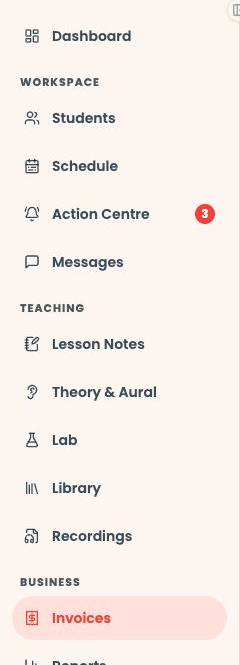
Start on your teacher dashboard. Look down the navigation menu for the Teaching heading, then click Library. If the menu is folded away, open it first to see the names.
Open full-size screenshot ↗Platform screenshot: Find Library under Teaching in the dashboard menu. The yellow outline marks the destination; this capture was taken from Invoices.
Check: The Library page opens.
2
Add a file
*Optional — Only for a new file
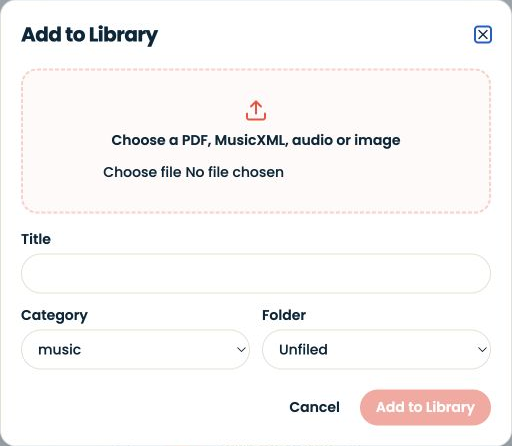
If the file is already in your Library, skip to the next step. Otherwise, choose Add material, select a file you may share, give it a clear title and wait for the upload to finish.
Open Manage sharing for the material. Search for the intended learner and choose Share beside their name. Check their access state after sharing. Uploading alone does not share a file.
Open full-size screenshot ↗Platform screenshot: Manage sharing filtered to Demo Student. Share is beside the learner’s name. No sharing was changed for this capture.
Check: The sharing information includes the intended learner.
Can’t find the same screen? Check that you are in the right account and have selected the right learner or lesson. On a small screen, open the navigation menu to see the page names. Read any access or availability message before continuing.
If a student cannot open a file
Check the recipient in Manage sharing and the account the student is using before uploading another copy.
Use the material in a lesson
Open Library inside the scheduled classroom. To give home practice, attach the material to an assignment and name the page or bars to work on.
Use files you have permission to share. When replacing a resource, check which version the learner can access; avoid sharing another student’s private annotations.
When MIDI disappears, find the first point where the signal stops. Avoid changing several settings at once.
Technology & Tools1 min ↗
A little choice. A clearer experience.
Your privacy, your choice.
We use essential storage to keep Synkii working. With your permission, we also use PostHog to understand page use and measure which campaigns lead to signups. No session recordings.