Keep SYNKii open in another tab. Follow the steps for your task; optional actions are labelled so you know what can wait.
Follow the numbered steps and highlighted controls. Screenshots show the actual SYNKii interface; example dates and settings may differ from yours.
1
Open your scheduled classroom
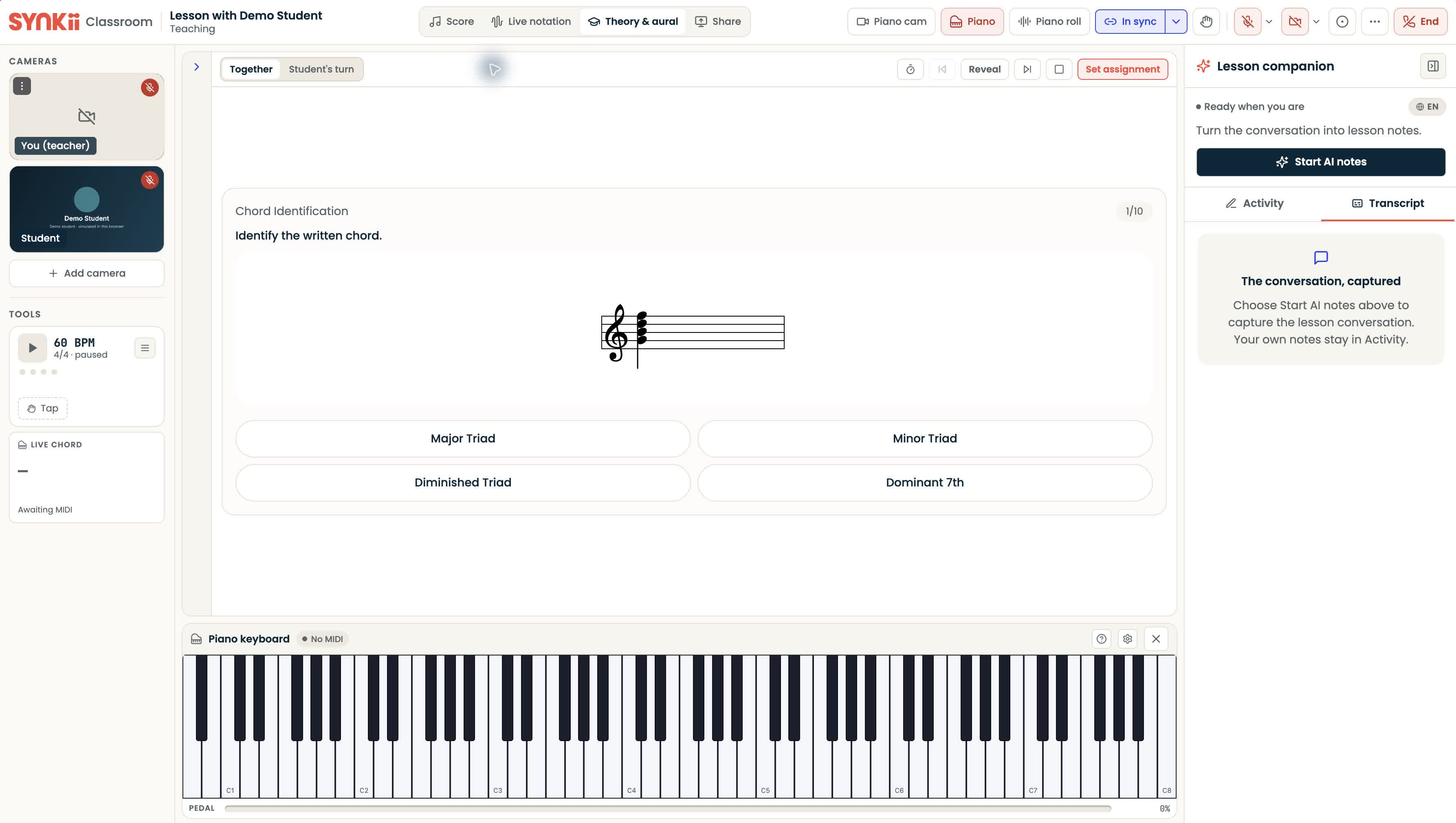
On the dashboard, find the lesson in Today’s teaching. Check the student and time, then click Enter classroom when it is available. For a lesson on another day, find it in Schedule first.
Open full-size screenshot ↗Platform screenshot: The actual classroom with Demo Student. Tools are on the left; Lesson companion is on the right.
Check: The classroom for that lesson opens. Use this for an in-person lesson too.
2
Find the teaching tools
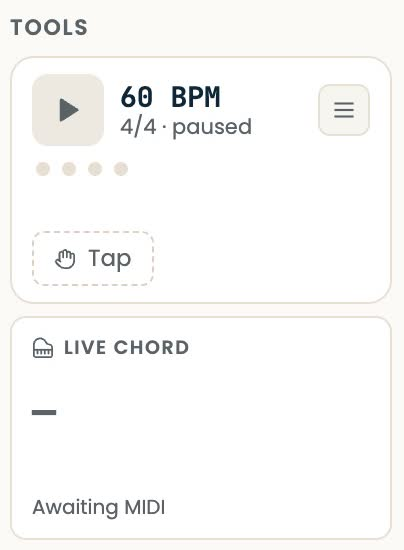
Find Tools below the cameras on the left of the classroom. Use the metronome play button, or open its settings button to change the tempo.
Open full-size screenshot ↗Platform screenshot: The Tools area contains the metronome and live chord display.
Check: The selected tool’s controls appear.
3
Set up one example
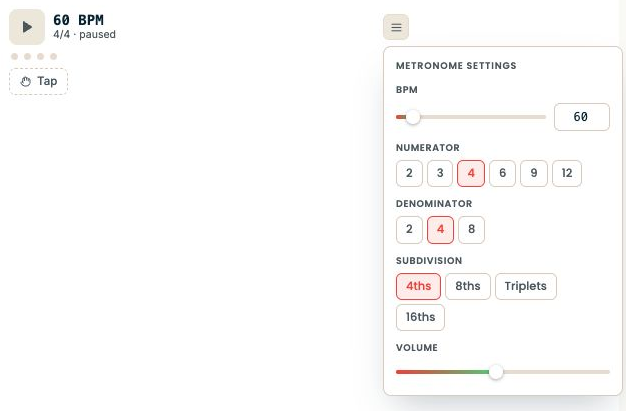
For the metronome, choose the tempo before starting it. Show the student the control you are changing. Check that they can hear the example.
Open full-size screenshot ↗Platform screenshot: Actual metronome controls in an isolated preview: tempo, beat grouping, subdivision and volume.
Check: You and the learner can try the example together.
4
Stop and return to the lesson
Stop playback when your example is finished, then return to the score or lesson activity. You can finish using the tool here; setting follow-up work is optional.
Open full-size screenshot ↗Platform screenshot: The metronome playback control is in Tools. Stop it before continuing with the lesson.
Check: The tool is no longer playing and you can continue the lesson.
Can’t find the same screen? Check that you are in the right account and have selected the right learner or lesson. On a small screen, open the navigation menu to see the page names. Read any access or availability message before continuing.
If the student cannot hear the tool
Check the selected audio device and any microphone or instrument input the tool needs. Ask the online student what they hear: sound working on your device does not confirm it reaches theirs.
Other classroom features
AI notes and video recording each need to be started separately. Opening a classroom does not start either. Use these only when you need them and follow the confirmation shown.
Open the scheduled Classroom before teaching, whether online or in person.
Online & In-person Teaching1 min ↗
A little choice. A clearer experience.
Your privacy, your choice.
We use essential storage to keep Synkii working. With your permission, we also use PostHog to understand page use and measure which campaigns lead to signups. No session recordings.